
Use this feature to when you migrate your Data Center site into Atlassian Cloud.
Always use the Snapshots Migration Assistant along with the native Atlassian tools for transferring spaces into a new site.
The Jira data that is captured by the snapshots is stored in dedicated database tables inside the Confluence database. However- when Atlassian tools (like Atlassian migration assistant) are restoring spaces, they do not restore those database tables.
Technically, the Snapshot Migration Assistant does two things:
-
It transfers snapshot tables from Data Center to Cloud, moving them from the internal Confluence database (DC) to files attached to pages (Cloud).
-
As your Confluence moves, Jira spaces migrate, along with the custom fields. The tool remaps custom fields used by snapshots to the custom fields in the new Jira, seamlessly allowing new snapshots to be retrieved (after the migration) without you needing to reconfigure the snapshots macro definition.
Migration from DC to Cloud: Steps to follow
Here is how to use the snapshots migration tool as part of a site migration flow.
👁️🗨️ The Snapshots tools are available to a Confluence administrator → Under the Snapshots App administration area.
|
Step |
Notes |
|
|---|---|---|
|
1 |
On target (Cloud) Cloud) site |
|
|
2 |
Install the Snapshots App and follow the instructions for linking it with Jira. |
Follow these instructions: |
|
3 |
If your Snapshot include Xray data (i.e. test, test runs): install also the Xray integration app |
Install this app: https://marketplace.atlassian.com/apps/1228815/snapshots-integration-with-xray-traceability-extensions?hosting=cloud&tab=overview
|
|
4 |
Using Atlassian native tools to migrate to the new site Use Atlassian tools to transfer Confluence spaces and Jira spaces to the target site. |
If you are migrating several Spaces, plan to migrate all of them in one flow. The Snapshot migration step will transition all the snapshots on the site in one go- so its advisable to migrate snapshots after all spaces and projects are migrated. 💡 At this stage, on the Target site: migrated pages with Snapshots will show and error where a Snapshot macro exists (ie: ‘Error loading extension’) |
|
5 |
On source (Data Center) site |
The steps on the source site should be carried out at the same point of time as when the Atlassian migrationis done, to ensure the Atlassian backup and the Snapshots backup are consistent with each other. |
|
6 |
The tab: Export Download the snapshots export file |
A zip file is downloaded. The zip contains two files:
|
|
7 |
On target site |
|
|
8 |
Prepare the Jira metadata export (json file) for the migration If Jira projects moved to a new site, prepare the Jira metadata export file for the migration. This file was generated on the source Confluence site in previous steps, and it needs to be augmented with data about the custom fields in the target Jira.
|
In this example, two custom fields are appearing in Snapshots:
JSON
💡 If a custom field has a new name in the target site, that new name will automatically appear in Snapshot- when the first Snapshot data (for that macro) is taken at the new site. |
|
9 |
The tab: Import
|
This file is not modified manually. It is uploaded exactly as it was downloaded.
|
Limitations, troubleshooting and upcoming improvements
|
Issue |
Notes |
|
|---|---|---|
|
1 |
Viewing historical Snapshots |
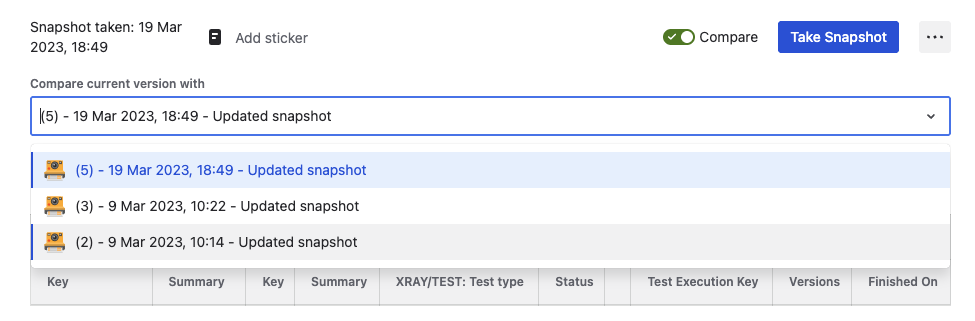
For non migrated pages, one of the features of the Snapshots app is that viewing historical page versions shows the historical sbapshot data. This feature is not preserved for historical versions that were migrated from DC. These historical page versions will not show the snapshot data. Rather they will show an error.
|
|
2 |
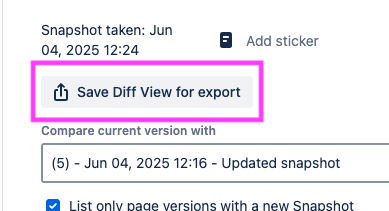
Saved diff view are not included in the migration
|
Please contact us ( support@radbee.com ) if this is required for your migration |
|
3 |
|
|