
Snapshots needs two apps installed by an Atlassian site administrator: Snapshots for Confluence on the Confluence side, and a small companion called Access Agent for Jira Snapshots for Confluence on the Jira side. Access Agent is free; its only purpose is to give Snapshots permission to read your Jira data.
By the end of this page, both apps are installed and Snapshots is ready to read Jira data.
Quick install (Confluence and Jira are on the same Atlassian site, most common case): Install Access Agent on Jira, then install Snapshots on Confluence. The connection establishes automatically.
Before you start
You'll need:
-
Site administrator access on the Confluence Cloud site where Snapshots will run.
-
Site administrator access on the Jira Cloud site that Snapshots will read from.
These two sites can be the same Atlassian site (the simplest case — no further configuration is needed) or different Atlassian sites.
1. Install Access Agent on Jira
Start with Jira so that Access Agent is in place before Snapshots looks for it.
-
In Jira, open Settings → Apps → Explore more apps.
-
In the Marketplace search, type
access agentand select Access Agent for Jira Snapshots for Confluence. -
Click Get it now. If you administer more than one Jira site, select the correct site when prompted.
-
Review the permissions and confirm. Installation takes a few seconds.
Access Agent is free. The Snapshots subscription is paid through the Confluence app only.
2. Install Snapshots on Confluence
-
In Confluence, open Settings → Atlassian Marketplace → Find new apps.
-
Search for
snapshotsand select Snapshots of Jira data into Confluence. -
Click Try it free. Confluence shows the price for your tier — free for sites with up to 10 users, paid above that — and offers a free trial.
-
Confirm the trial. Installation takes a few seconds.
You can cancel the trial at any time before it ends; there's no automatic charge during the trial.
3. Configure and verify the connection
When Confluence and Jira are on the same Atlassian site (the same URL prefix, for example, both on radbee-green.atlassian.net), the connection between Snapshots and Jira is established automatically once both apps are installed. You don't need to open Snapshots Configuration. Allow a few minutes for the two apps to recognize each other.
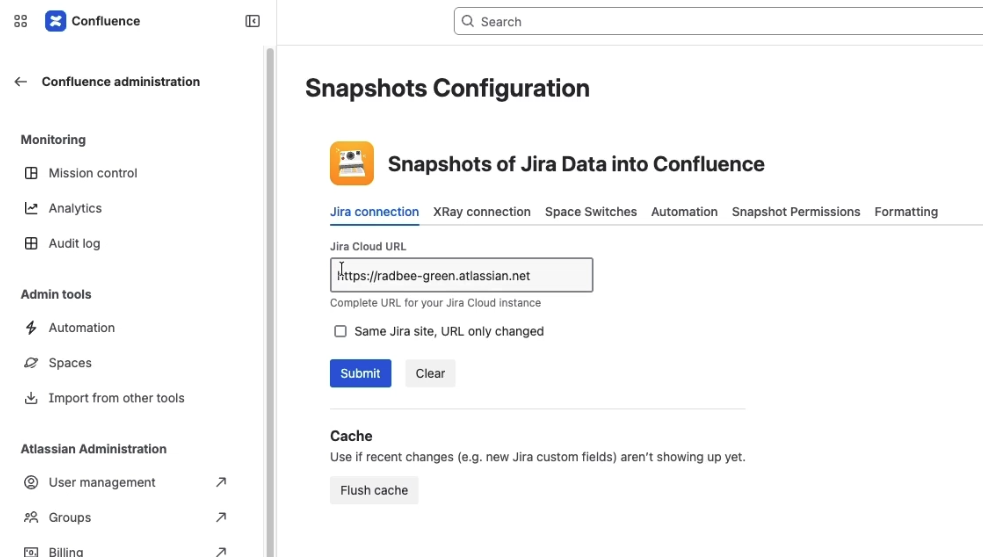
If your Jira sits on a different site, you will need to update the Jira Cloud URL. If that;s the case, or if you simply want to confirm the connection is live before moving on:
-
In Confluence, open Settings → Apps → Snapshots Configuration → Jira.
-
The Jira Cloud URL is pre-filled with your same-site Jira. If you are connecting to a different Jira, update the URL to the correct one.
-
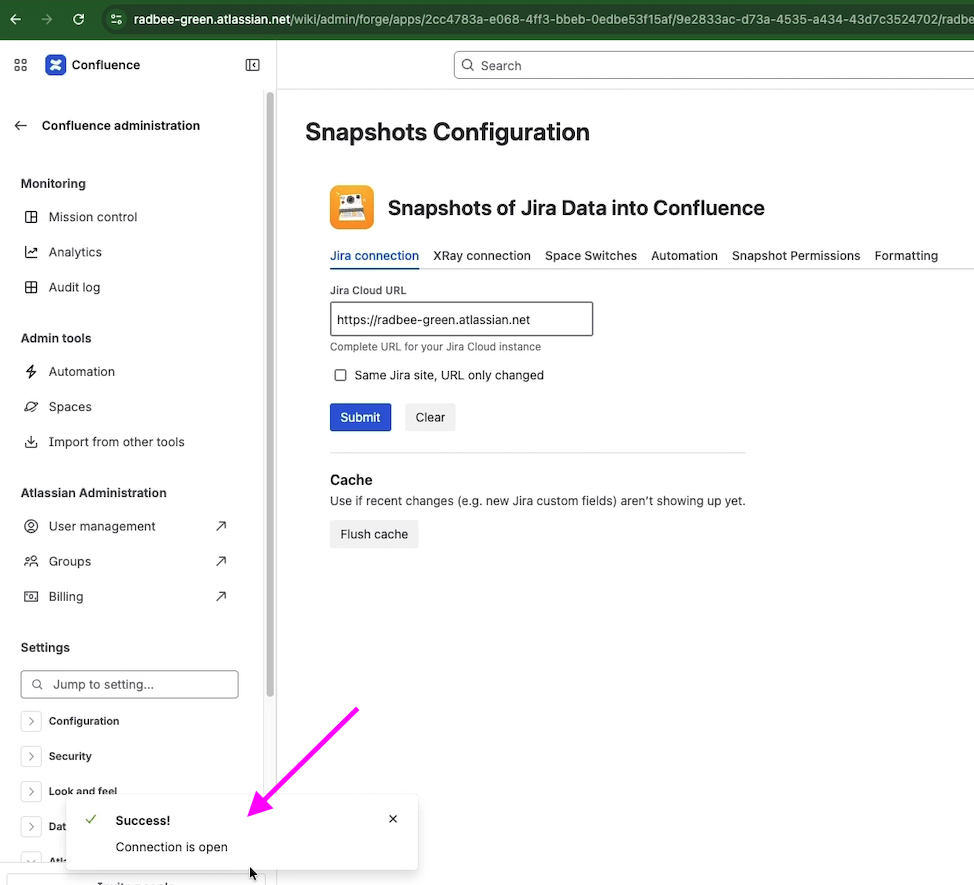
Click Submit. Look for Connection is open in the lower-left corner of the screen.
A note on Snapshots Backup Restore
In Settings → Apps, you'll see a second entry called Snapshots Backup Restore alongside Snapshots Configuration. You don't need it to take your first snapshot — it's an administration tool covered in Backup and migration. Ignore it for now.
Connecting Snapshots across two Atlassian sites
You can skip this section if your Confluence and Jira are on the same Atlassian site.
By default, Access Agent allows Snapshots access only when both apps are installed on the same Atlassian site. To allow a Snapshots installation on a different Confluence site to read this Jira:
-
In Jira, open Manage apps → Access Agent for Snapshots for Confluence → Configuration.
-
Add the Confluence site name (for example,
radbee-yellow). The full URL is completed automatically.
Then point Snapshots at the right Jira on the Confluence side:
-
In Confluence, open Settings → Apps → Snapshots Configuration → Jira.
-
Enter the Jira Cloud URL.
-
Click Submit. Confirm Connection is open.
You can authorize multiple Confluence sites against a single Jira, or connect a single Confluence to multiple Jiras, by repeating the appropriate steps for each pairing.
What's next
-
Taking your first snapshot from Jira — fastest way to see Snapshots in action.
-
Taking your first snapshot from Confluence — the standard authoring flow.
-
How snapshots work — the concepts behind both flows: static data, versioning, and comparison.