
A snapshot is a static capture of Jira data, embedded in a Confluence page. When you take a snapshot, Snapshots reads the issues your search returns from Jira at that exact moment, stores them on the Confluence page, and renders them as a table. After that, the data on the page doesn't change — even if the underlying Jira issues do.
This is the core property that makes Snapshots useful: a Confluence page with a snapshot is a stable record of what the issues looked like then. That makes it suitable for status reports, release documentation, sign-offs, audits — any context where a frozen view is more useful than a live view.
This page explains what happens behind a snapshot: how the data is stored, how page versions track each snapshot, and how to compare one snapshot to another. We'll continue adding to this page as more product behavior is documented.
A snapshot is static
A snapshot does not update automatically when Jira changes.
To see this in action: take a snapshot of an issue, then in Jira modify that issue's title, status, or any other field. Refresh the Confluence page. The snapshot still shows the old values — the values that existed at the moment the snapshot was taken.
To pick up the new Jira data, take a new snapshot from the page. The table refreshes to the current Jira state, and a new page version is recorded.
Where to take a fresh snapshot:
-
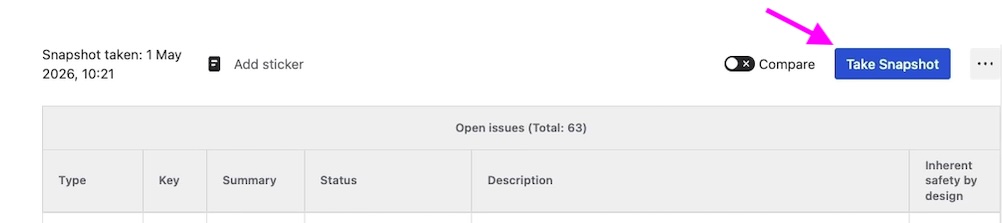
From the page itself — open the page and click Take snapshot.
-
Programmatically — see Triggering snapshots automatically via a REST call.
Snapshots and page versions
Every snapshot creates a new Confluence page version, so the page's version history doubles as a snapshot history.
A typical page with a Snapshots macro accumulates page versions with each new time snapshot data is retrieved. For example, like this:
|
Page version |
What it contains |
|---|---|
|
1 |
The page as you first published it, with the Snapshots macro configured but no data captured yet. The macro renders an empty placeholder. |
|
2 |
The first snapshot. The macro renders the data captured from Jira at the moment of the snapshot. The version is automatically labeled Updated snapshots. |
|
3 |
A subsequent change — either a new snapshot, or an edit to the macro configuration (level title, fields, JQL). |
|
4+ |
One additional version per new snapshot or configuration change. |
You can browse to any previous page version through the Confluence page history. Each version preserves the snapshot data as it was at that point — so the page's version history is a complete archive of every snapshot ever taken on the page.
Where snapshot data is stored
Snapshot data is stored as a JSON attachment on the same Confluence page. You can inspect it under the page's Attachments view: look for a file whose name starts with radbeesnap followed by an alphanumeric identifier.
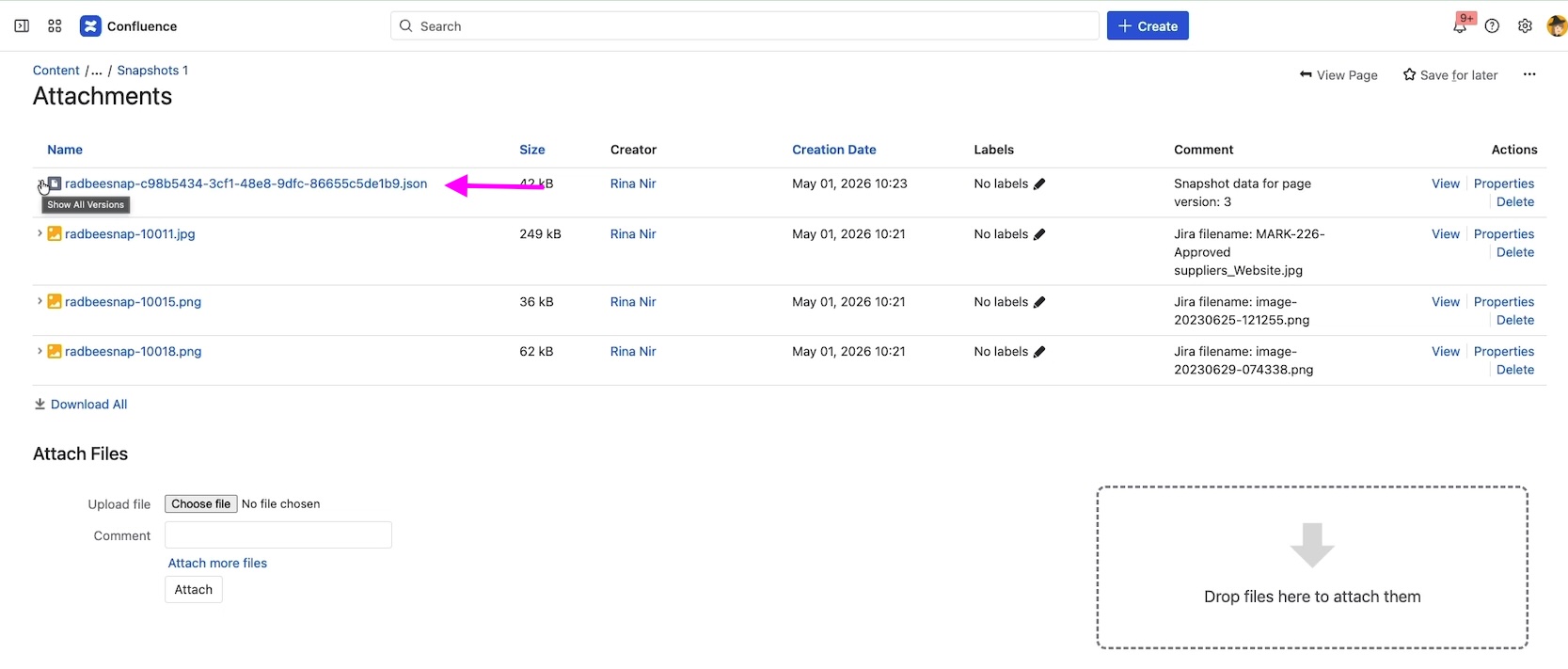
This means user-sensitive data lives entirely inside Confluence — on the Atlassian infrastructure, alongside the rest of your Confluence content. The Snapshots app does store operational metadata on a separate infrastructure, but that is both very limited and does not contain any potentially sensitive information.
For the broader trust and security implications, see Trust, data and security.
Who can see a snapshot
Because the data is stored on the Confluence page itself, anyone with view access to the page can see the snapshot — and they see exactly what every other user sees. That's true even if they have no Jira license, or no view access to the Jira project the data came from.
This is the principle that makes Snapshots useful for sharing Jira data with audiences outside Jira: customers, auditors, leadership, contractors, anyone with Confluence access but not Jira. View access on the page is the only entitlement they need.
Taking a new snapshot is a different action and requires edit access to the page. See Permissions for snapshots for how the take-snapshot permission works and how an administrator can grant it without giving page-edit rights.
Comparing snapshots
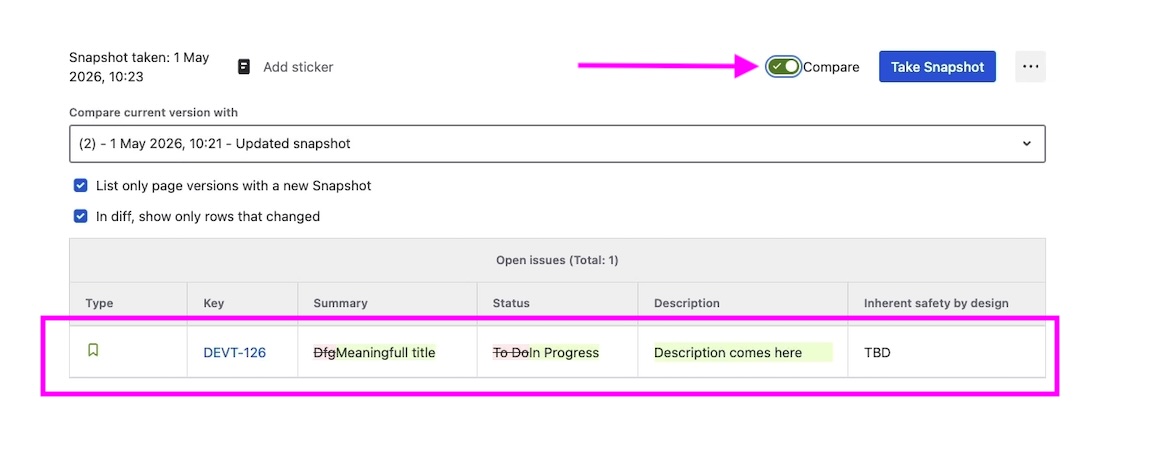
By default, Compare shows the difference between the current and previous snapshots on the same page. You can also compare against any earlier snapshot recorded on the page.
For the full comparison workflow, see Comparing snapshots over time.
When to take a new snapshot
Some practical guidance:
-
Periodic reports. Take a new snapshot at predefined intervals. For example, every Friday morning, for a weekly status report.
-
Release documentation. Take a snapshot when the release ships. It freezes the scope, status, and outcome at the moment of release.
-
Sign-offs and reviews. Take a snapshot before a stakeholder review. Reviewers see consistent data even if the underlying issues change during the review.
-
Don't take a snapshot every time the page is opened. A snapshot's value is that it's stable. If you need a live view of Jira data, the standard Jira macros in Confluence are a better fit.
For automating snapshot timing, see Automating snapshots.
What's next
-
Taking your first snapshot from Confluence — the basic authoring flow.
-
Comparing snapshots over time — the full comparison workflow.
-
Configuring multi-level snapshots — beyond a single flat table.