
A snapshot accumulates a new version each time fresh data is captured. Compare is the on-page control that shows what changed between any two of those versions — useful for stakeholder reviews, release sign-offs, weekly reports, or just answering "what's different from the last time we looked?"
Open Compare
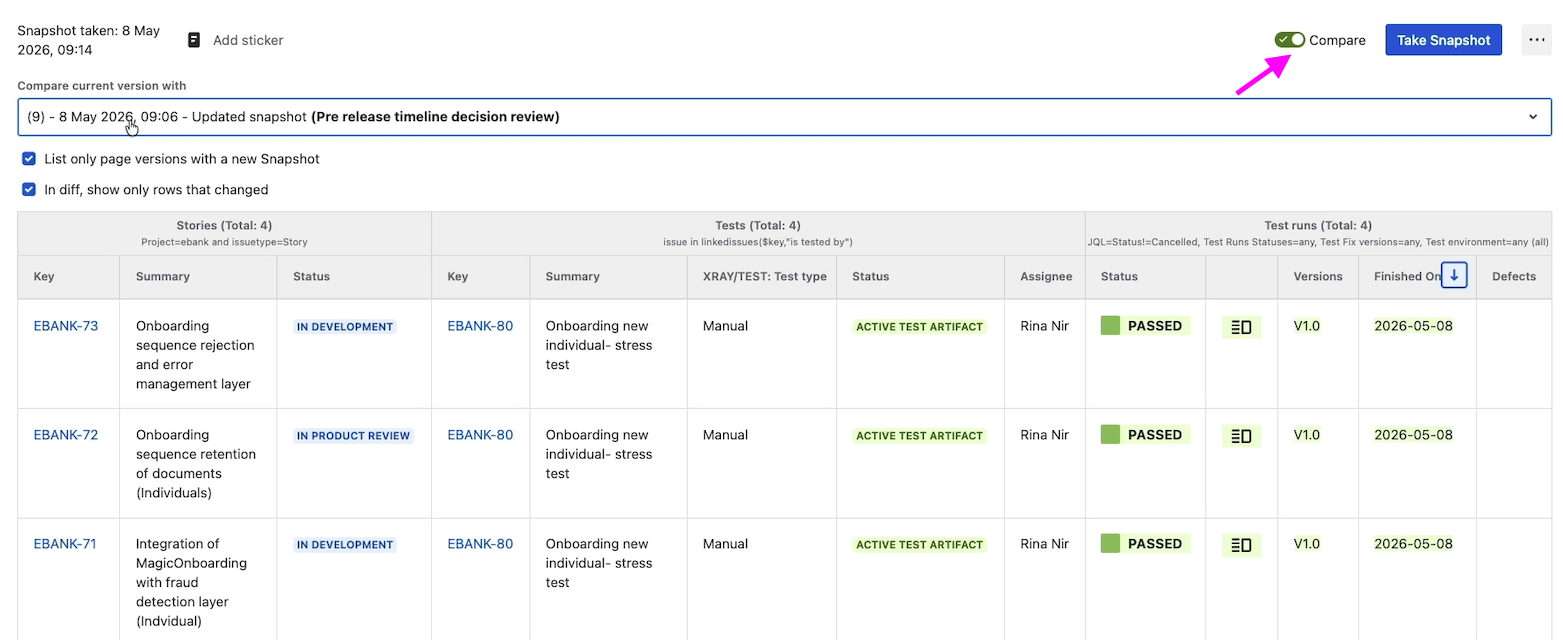
The Compare control is at the top of the snapshot, next to the Take snapshot button.
Click the Compare toggle to switch into the diff view. By default, Compare shows the difference between the current (most recent) snapshot and the snapshot taken immediately before it. If those two snapshots are identical, the diff appears empty.
Compare against any earlier snapshot
The default comparison is current vs. previous, but you can compare against any earlier snapshot on the page.
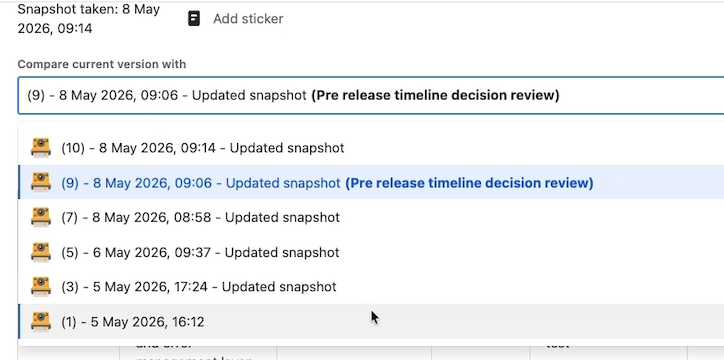
In the diff view, open the version picker and choose the snapshot you want to compare the current one against. The list shows every snapshot version recorded on the page, in reverse-chronological order.
What each entry in the version picker shows
|
Element |
What it means |
|---|---|
|
Page version number |
The Confluence page version. For example, "v9" means Confluence page version 9. |
|
Date |
When the snapshot was taken. |
|
Version comment |
Typically Updated snapshots for versions created by Snapshots when a new snapshot was retrieved. |
|
Sticker label (bold) |
If a sticker was attached to the snapshot at that version, the sticker label appears in bold next to the entry. |
Stickers are particularly useful here. They make it easy to pick a meaningful historical snapshot from the picker without scanning dates and version numbers. See Using stickers for how to add them.
Reading the diff
In the diff view:
-
New or added information is highlighted in green — values that exist in the current snapshot but didn't exist in the snapshot you're comparing against.
-
Removed information is highlighted in red — values that existed in the older snapshot but don't exist in the current one.
Important. The diff reflects what changed in the snapshot, not in Jira. If a field was removed from the snapshot's configuration — for example, by un-ticking Description in the macro's field list — the diff shows that field as removed, even though the data still exists in Jira. Compare answers "what changed in this report", not "what changed in Jira".
Display options
Two toggles in the diff view control what the picker and the diff show.
Show only changed rows (default) vs. show all rows
By default, Compare shows only the rows that differ between the two snapshots. Unchanged rows are hidden so reviewers can focus on what's new.
To see the complete current snapshot — including rows that haven't changed — untick the show only changed rows option. Unchanged rows appear without highlighting; only changed cells continue to be highlighted in green or red.
List only page versions with a new snapshot (default) vs. list all page versions
The version picker by default shows only page versions that were created when a new snapshot was taken — their version comment is Updated snapshots. This keeps the list short and anchored to the moments where snapshot data actually changed.
Some page versions are created by other actions, like someone editing the page text or fixing a typo without taking a new snapshot. Those versions still hold whatever snapshot data was current at that moment. To include them in the picker, untick list only page versions with a new snapshot. The picker will then show every page version, and selecting one compares the current snapshot against the snapshot data that was on the page at that point.
Practical use cases
-
Stakeholder reviews. Open Compare and pick the version of the snapshot you presented at the last meeting. Reviewers see only what's changed since that point — added rows, status moves, new test runs.
-
Release sign-offs. Compare the current scope against a stickered snapshot taken when the release shipped, to see what's drifted.
-
Weekly reports. Compare against last week's snapshot to highlight the week-over-week delta.
What's next
-
Using stickers — tag specific snapshot versions so they're easy to find in the Compare picker.
-
How snapshots work — page versioning model and how snapshot data is stored.
-
Taking your first snapshot from Confluence — start here if you haven't taken a snapshot yet.