
Snapshots scrolling renders only the rows currently visible in the viewport, instead of loading the entire snapshot into the page at once. The page viewer scrolls within the snapshot rather than scrolling the Confluence page through every row.
Use it when you have very large snapshots — hundreds of rows, thousands, or in extreme cases tens of thousands — and especially when a single Confluence page has more than one large snapshot. The default behavior (load everything inline) makes the page slow to open and tedious to read.
By the end of this page, you have snapshots scrolling enabled on a specific snapshot, or you know how to ask your administrator to enable it as the site default.
When to enable it
-
A single snapshot has hundreds or thousands of rows.
-
A page contains several snapshots.
-
The page takes noticeably long to open or scroll.
-
Page viewers struggle to navigate text and other content alongside the snapshots.
If the snapshot is small (a few dozen rows), the default render is fine — there's no benefit to enabling scrolling.
1. Enable it on a single snapshot
-
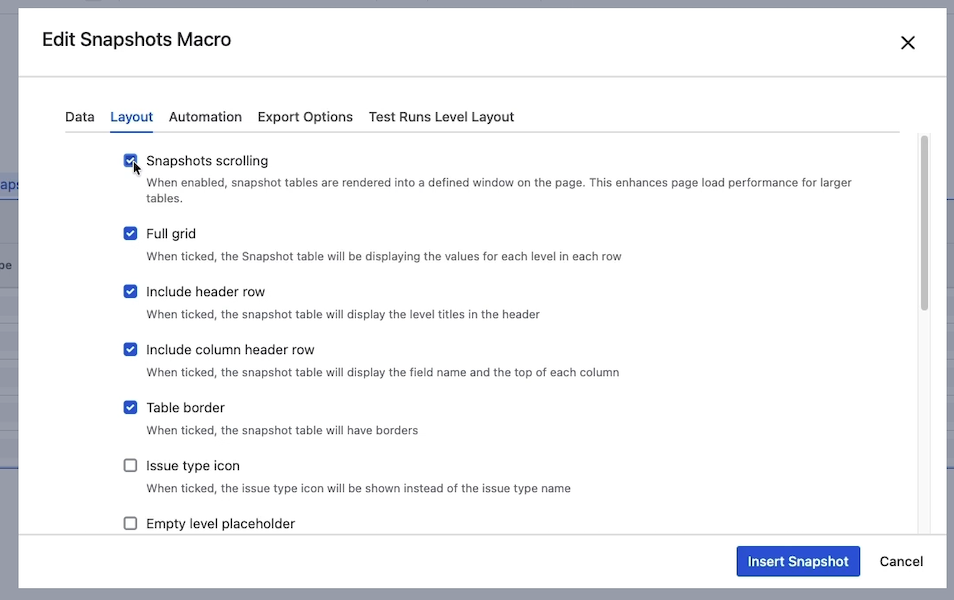
Edit the page and open the macro configuration.
-
Go to the Layout tab.
-
Tick Snapshot scrolling.
-
Click Insert snapshot and republish the page.
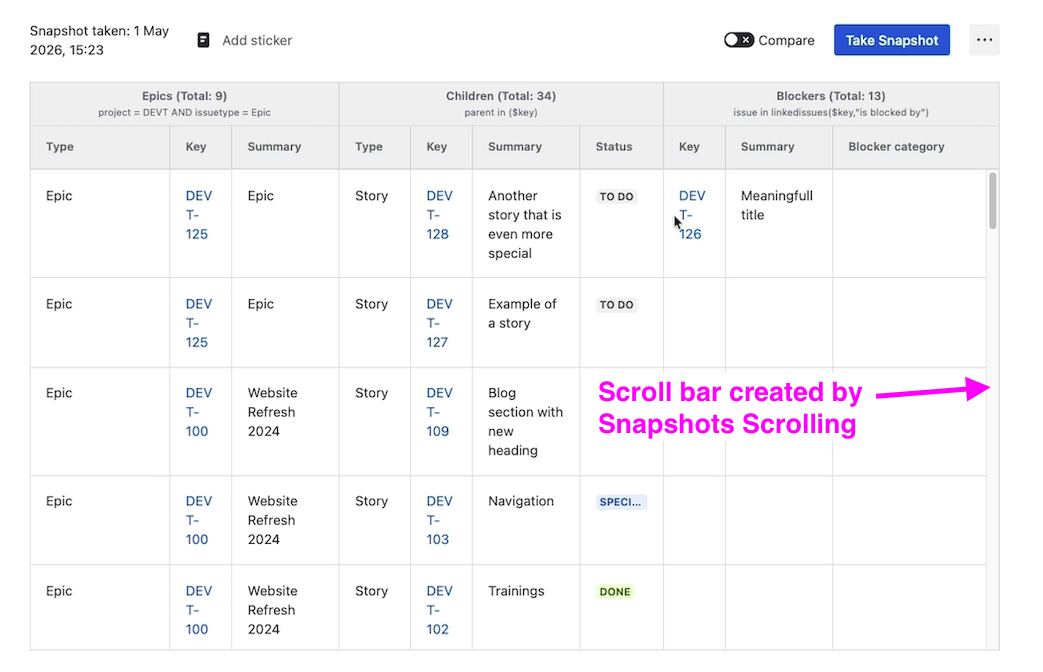
You don't need to take a new snapshot when enabling or disabling this option. It only changes how the data is rendered, not what data is captured.
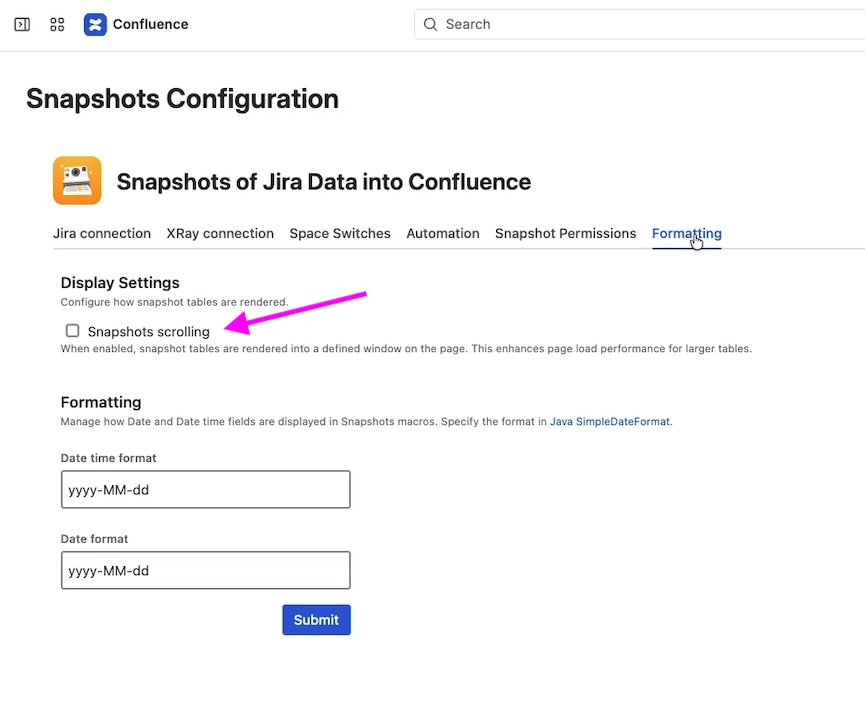
2. Enable it as the site default
If your site frequently produces large snapshots, an administrator can change the site-wide default so that all new snapshots are created with scrolling enabled. Existing snapshots aren't affected.
What's next
-
Display options on the Layout tab — the other Layout tab options that affect rendering.
-
Configuring multi-level snapshots — multi-level snapshots are the most common source of very large tables.
-
Configuring Snapshots admin settings — administrator-side configuration.