
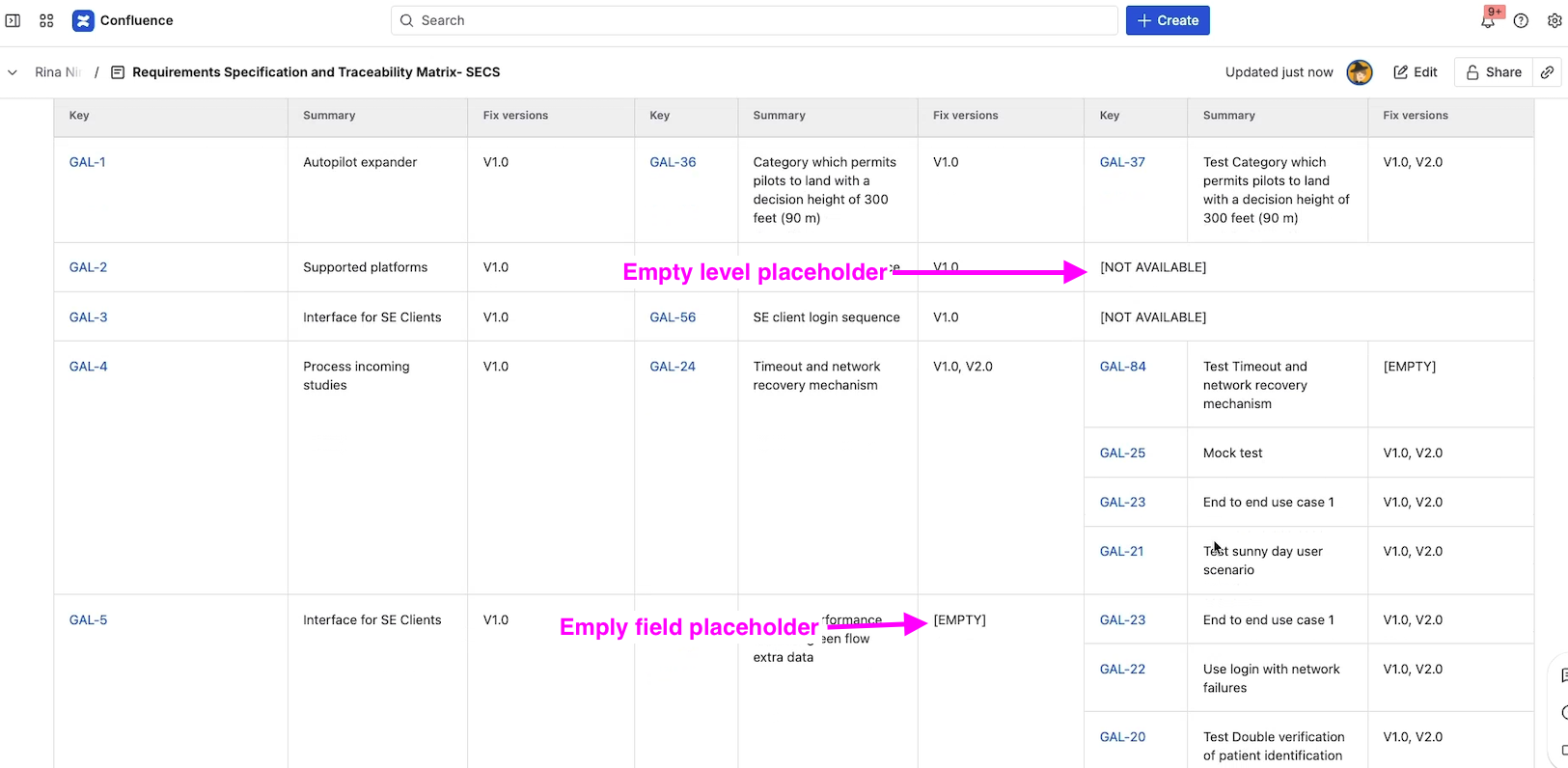
A placeholder is a piece of text that Snapshots displays in place of an empty cell or an empty level. It exists for a single reason: in regulated and audit contexts, an empty cell can be ambiguous — it might mean "no data" or it might mean "data was removed." A placeholder makes the absence explicit.
There are two kinds of placeholders:
-
Field-level placeholder. Replaces the value of a single field when it is empty for a given issue.
-
Empty-level placeholder. Replaces an entire missing level when a parent has no children at that level.
You configure both from the macro configuration screen.
When to use a placeholder
-
You need to deliver compliant documentation (regulated industries, formal audits, sign-offs) where every cell must carry information.
-
You want page viewers to be able to tell at a glance which entries are deliberate and which are missing.
-
You want the export (Excel, PDF) to read cleanly with no blank cells.
If neither of these applies, the default empty cell is fine.
Field-level placeholder
Replaces the empty cells of a single field. The same placeholder is applied to that field on every level it appears.
To configure a field placeholder:
-
Edit the page and open the macro configuration.
-
On the level where the field appears, hover over the field name in the field list.
-
Click Placeholder.
-
Edit the text if you want a custom string. The default text is empty (renders as empty square brackets
[ ]); you can replace it with anything — for example,Not specified,N/A, or a short comment. -
Save with Insert snapshot and republish the page.
The placeholder text appears in any cell where that field has no value, on every level the field is on.
Empty-level placeholder
Replaces an entire absent level. If a level-1 issue has no level-2 children (or a level-2 issue has no level-3 children, and so on), the row that would otherwise be empty shows the placeholder text.
To configure an empty-level placeholder:
-
Edit the page and open the macro configuration.
-
Open the Layout tab.
-
Scroll to Empty level placeholder.
-
Tick the option to enable it. The default text is
[NO DATA]. Edit if you want a different string — for example,Not Available. -
Save and republish the page.
Now wherever a parent has no children at the next level, the placeholder text shows instead of an empty space.
What's next
-
Field options: sort and don't-wrap — the other per-field configuration options.
-
Configuring multi-level snapshots — where empty-level placeholders matter most.
-
Display options on the Layout tab — the rest of the Layout tab settings.