
Snapshots can be exported as Excel files (.xlsx) directly from the page, or copied to the clipboard for pasting into another application. There's also an option to embed the Excel file inside a PDF export of the page — useful when the snapshot is too large to render in a PDF cleanly.
This page covers all three options.
Direct export to Excel
The fastest path: download an Excel file containing the data of a single snapshot.
-
View the page that contains the snapshot.
-
Above the snapshot, open the three-dots menu (
⋯). -
Select Export to Excel.
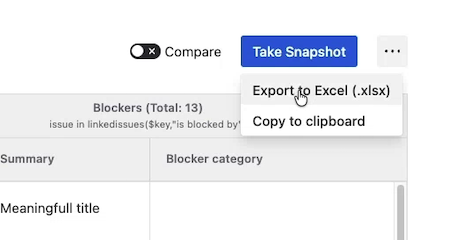
An .xlsx file is generated and downloaded to your computer immediately. The file contains the data exactly as it appears in the snapshot — same columns, same rows, same level structure.
Copy to clipboard
The same three-dots menu also offers Copy to clipboard. This places an HTML representation of the snapshot on your clipboard so you can paste it into another tool.
The most common use case is email: copy the snapshot, open a new email message, paste, and the snapshot appears as a formatted table inside the email body.
The clipboard copy is a one-time export — the pasted content is static HTML and doesn't update if the snapshot changes.
Embedded Excel inside a PDF export
This option is for pages with very large snapshots that you export as PDF using K15t's Scroll PDF Exporter. When a snapshot has many thousands of rows, rendering all of them inline in a PDF produces a huge document, and in extreme cases Scroll PDF Exporter can't process the snapshot at all.
To work around this, Snapshots can include the snapshot's data as an embedded Excel file in the exported PDF, instead of rendering it inline. Page viewers open the PDF, see a placeholder for the snapshot, and double-click the embedded file to open the data in Excel.
To enable embedded export:
-
Edit the page and open the macro configuration.
-
Go to the Export Options tab.
-
Tick Export this snapshot as an embedded attachment.
-
Choose the embedded format — XLSX or HTML.
-
Click Generate snapshot file. Snapshots produces the export file from the current snapshot data.
-
Click Insert snapshot and republish the page.
When the page is exported as PDF (via Scroll PDF Exporter), the snapshot is included as the embedded file you generated rather than as inline content.