
The Snapshots Test Report macro is a separate macro from the standard Snapshots macro. It's available only when the Traceability Extension is installed. Use it when you need a compliance-style, detailed test report — typically for audits, regulatory submissions, or formal sign-offs — where each test is presented with its full test run details, step results, defects, and evidence.
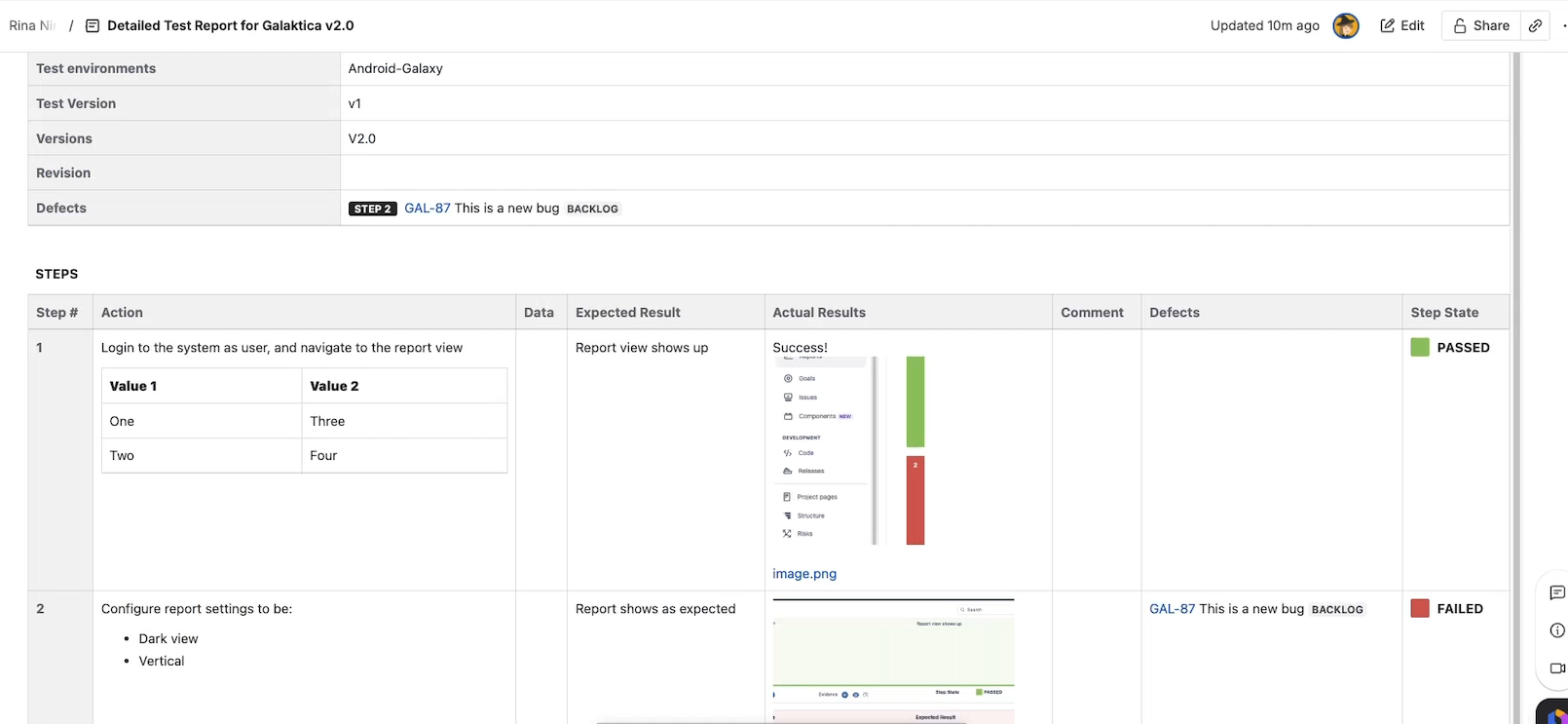
By the end of this page, you can build a detailed test report on a Confluence page and tune which tests, runs, and report sections appear.
When to use this macro vs. the regular Snapshots macro
|
Use case |
Macro |
|---|---|
|
A flat or hierarchical table of issues, possibly including some Xray fields |
Snapshots macro with Xray fields and test run levels |
|
A test report with full details about each test: one entry per test, with its latest run (based on criteria), full step details, defects, and evidence |
Snapshots Test Report macro |
|
A test plan (list of tests without runs) |
Snapshots Test Report macro with test runs disabled |
The Snapshots Test Report macro returns at most one test run per test (the latest matching the criteria), so it isn't suitable for showing run history. Use a test run level on the regular Snapshots macro for that — see Adding Xray data to snapshots.
Adding the macro to a page
-
Create or edit a Confluence page.
-
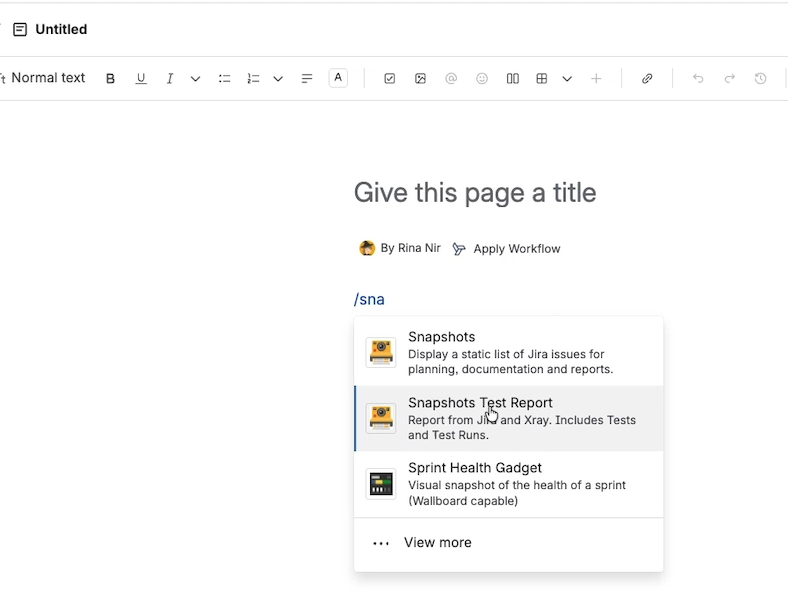
Where the report should appear, type
/and search forsnapshots. -
Two macros come up: Snapshots and Snapshots Test Report. Select Snapshots Test Report.
-
The macro configuration panel opens with three tabs: Configuration, Report Sections, and Layout.
-
Configure each tab (described below), insert the macro, publish the page, and click Take Test Snapshot in the prompt that appears.
The page now shows a header with the snapshot timestamp, sticker, compare control, and Take Test Snapshot button — similar to a regular snapshot, but tailored for the test report.
Configuration tab — selecting tests and runs
Selecting tests
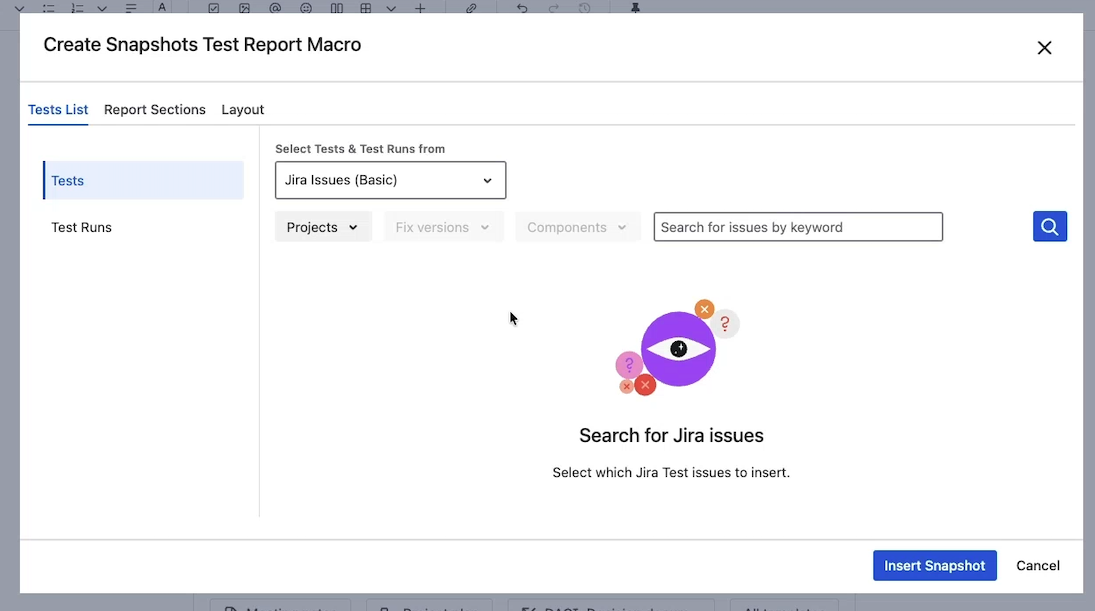
Three options for choosing which tests appear:
-
Simple criteria — pick a project, fixed version(s), component(s), and an optional keyword. Click Preview to verify the resulting test list.
-
JQL — enter a JQL string. Snapshots automatically filters the JQL to test issues, so you don't need to add
issuetype = Testyourself. -
Test plan — pick a Jira issue of type Test Plan; only tests linked to that plan are included.
Pick the one that fits the report's scope. JQL is the most flexible; test plan is best for reports tied to a specific approved test plan.
Including test runs
The Include test runs toggle is on by default. Turn it off to produce a test plan-style report — tests only, no run details.
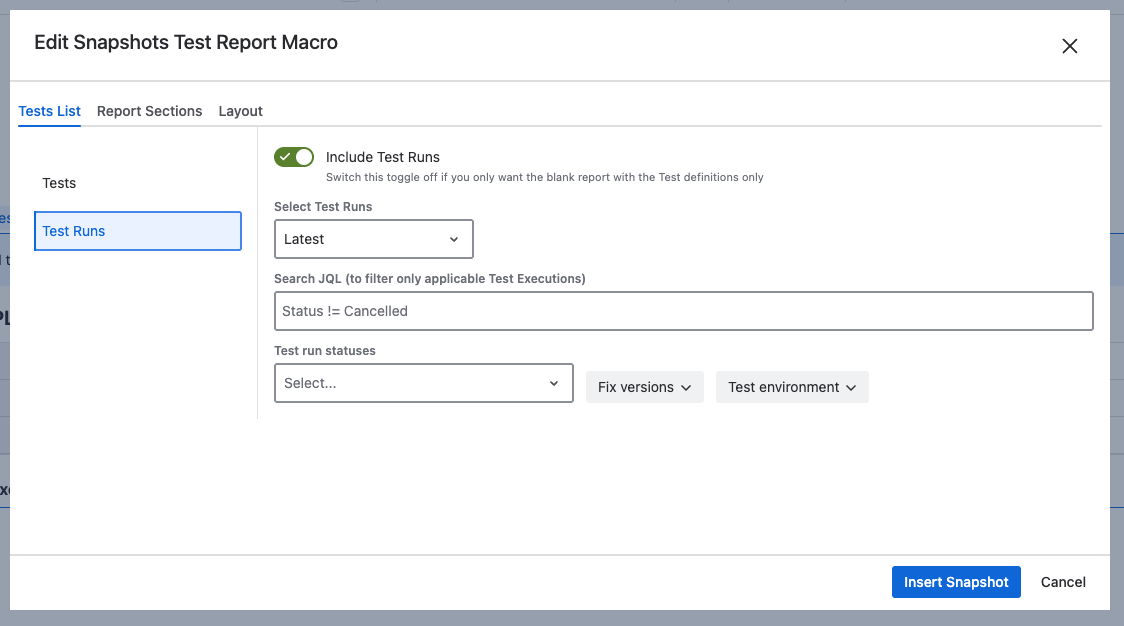
When test runs are included, you control both which runs qualify and which of the qualifying runs appear in the report.
How runs are selected
-
Latest — for each test, include only the most recent run that matches the filters below. This is the original behavior, and the right choice for a point-in-time report showing current test status.
-
Any — include every run that matches the filters, not just the most recent. Use this when a single latest run isn't enough, for example to show all runs across a release or environment.
Filtering which runs qualify
Narrow the runs the macro considers with any combination of the following. They apply to both the Latest and Any selection modes.
-
Fixed version — only consider runs associated with a specific Jira version. Useful for release-scoped reports.
-
Test environment — only consider runs from a specific Xray test environment, for example
productionordev. -
Test Execution JQL — only consider runs whose Test Execution matches a JQL. This lets you scope runs by any Test Execution field, for example a particular execution cycle, assignee, or label.
-
Run status — only consider runs with one of the statuses you choose, for example only
PASSor onlyFAIL. Useful for failure-focused reports, or for showing only passed runs in a sign-off.
If no runs match the filters, the test appears with no run section.
Report Sections tab — what appears on the page
The report has four sections, each independently toggleable. Turn off the ones you don't need.
|
Section |
What it shows |
|---|---|
|
Test info |
Fields from the test issue itself: key, summary, type, fixed version, components, description, linked issues, preconditions. |
|
Test run info |
A link to the test run, plus run-level fields: status, execution time, executor, etc. Skipped if test runs are not included. |
|
Steps / Scenarios / Definitions |
Granular test execution data. Steps for manual tests. Scenario (Gherkin) for Cucumber tests. Definition for Generic tests. |
|
Evidence |
Screenshots and other attachments collected from each test run. By default, all evidence is collected at the end of the report so it can render at full page width — useful for auditors. Optionally place evidence after each test instead. |
For each section that's turned on, the Configure fields option lets you remove fields you don't need. Removing fields the report doesn't use shortens the document considerably — recommended, since detailed test reports tend to be long.
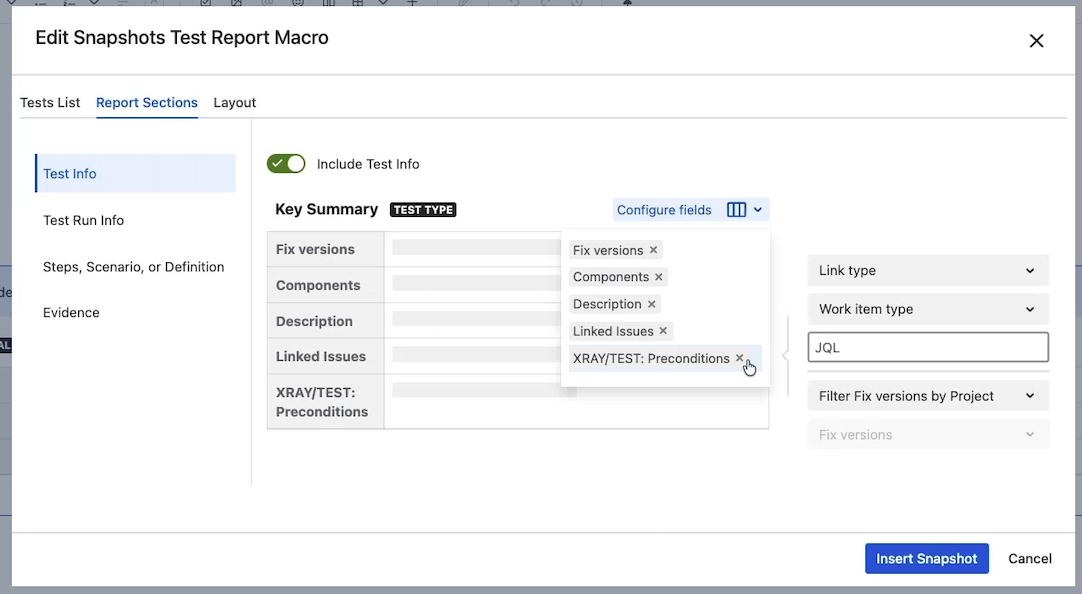
Linked issues filtering
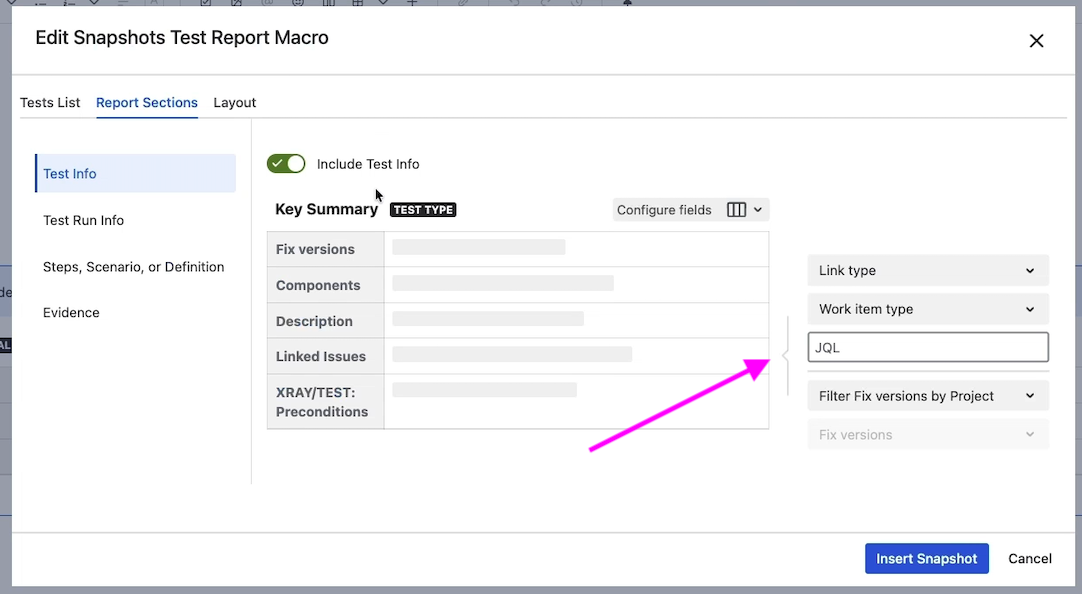
Linked issues (in the Test info section) are particularly useful for showing coverage — for example, the user requirements a test covers. But not every link is meaningful for a report. The linked-issues panel lets you narrow which links appear:
-
By link type — for example, only "tests" or "covers."
-
By work item type — for example, only stories or epics, hiding implementation tasks.
-
By JQL — only links to issues matching a JQL.
-
By fixed version — only links to issues in a specific version, ideal for release-scoped reports.
Use these filters to keep the report focused on the links that matter for the audience.
Layout tab — display options
|
Option |
What it does |
|---|---|
|
Include defect status |
When ticked (default), each defect's Jira status appears alongside its key. Untick to show keys only. |
Refreshing the report
Like a regular snapshot, the Test Report macro captures data at the moment Take Test Snapshot is clicked. To refresh, click the same button on the page header.
The page-versioning model is the same as for regular snapshots: each new test snapshot adds a new page version, and you can compare versions through the Compare control. See How snapshots work for the underlying mechanics.
What's next
-
Configuring the Xray connection — required for this macro to work.
-
Adding Xray data to snapshots — using Xray fields and test run levels in the regular Snapshots macro.
-
Configuring multi-level snapshots — for hierarchical test/coverage reports built on the regular Snapshots macro.