
A Confluence page can hold several Snapshots macros. When you need to refresh the data, taking each snapshot one by one is tedious — and creates a separate page version for each, cluttering the version history. The Take all snapshots button refreshes every snapshot on the page in one click and produces a single combined page version.
When to use it
-
The page has more than one Snapshots macro — for example, a requirements snapshot and a traceability snapshot that should stay synchronized.
-
You'd otherwise have to take each snapshot individually.
-
You want a single, clean page version after the refresh, rather than one version per snapshot.
How to take all snapshots at once
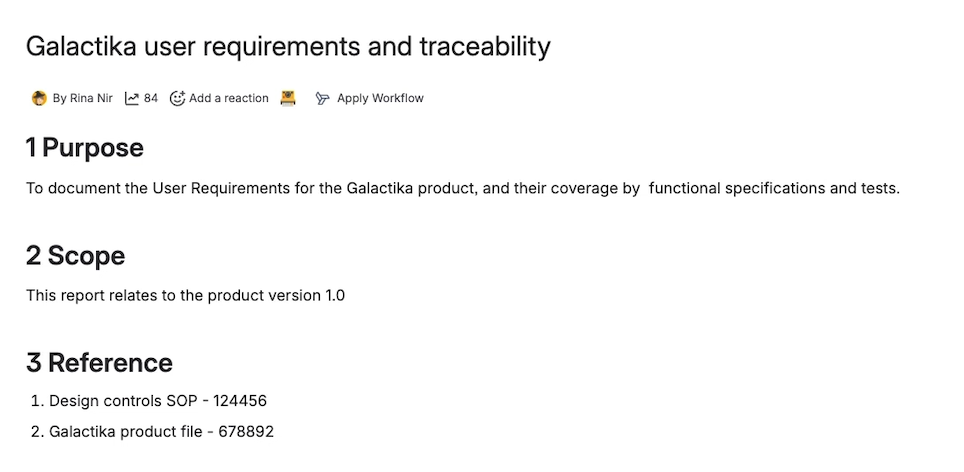
The button appears just below the page title. Its icon looks like a small camera.
-
Open the page in view mode (no need to edit).
-
Click the camera button below the page title.
-
Confirm in the prompt that you want to take all snapshots on the page.
Snapshots refreshes every macro on the page and creates one new page version with all updates. The page version comment indicates that all snapshots were updated together.
Effect on the version history
If you take snapshots individually, each click produces its own page version. Taking all snapshots at once produces only one new version. For pages with several macros, this keeps the version history clean and easier to navigate when comparing snapshots over time.
What's next
-
Snapshots User Settings — configure how Snapshots behaves when you change a macro's configuration (whether it auto-refreshes, prompts, or stays put).
-
How snapshots work — the page versioning model.