
Anyone viewing a snapshot can sort, filter, or group its rows on the fly — without changing the macro configuration. Hover over any column header on the rendered page to apply these manipulations. Use them when you want to focus on a subset of the data temporarily — for example, only the issues with status "To Do," only rows whose summary contains a specific word, or rows grouped by a field.
Principle: page-view manipulations are not persistent. Any change you make to the snapshot while viewing the page — sorting, filtering, grouping — disappears as soon as the page is refreshed and is invisible to other page viewers. To make a layout change permanent, edit the macro configuration on the page (which requires edit access to the page).
Filtering
Hover over a column header. A filter icon appears.
You can filter on a column in two ways:
-
By presence. Show only rows where the field has a value, or only rows where the field is empty. Useful for finding rows missing a piece of information — for example, work items without a blocker category set.
-
By text content. Enter text and choose a match operator (contains, equals, starts with, and so on). Snapshots applies the filter and shows only the matching rows.
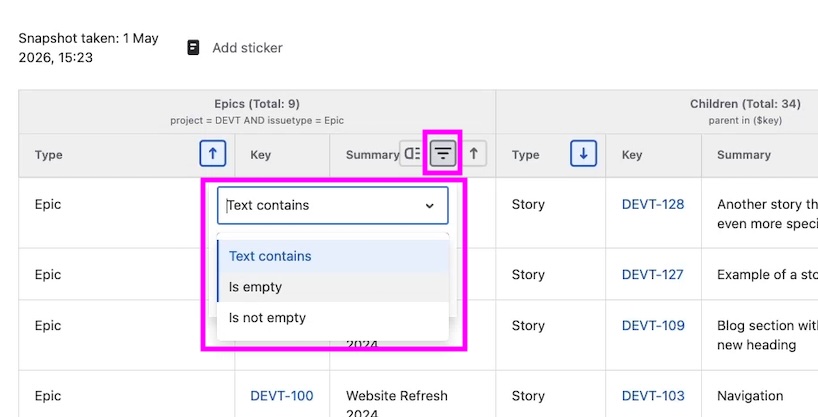
You can apply multiple filters across different columns simultaneously. The result narrows progressively as each filter is added.
Click Clear filter on the column header to remove a filter.
Sorting
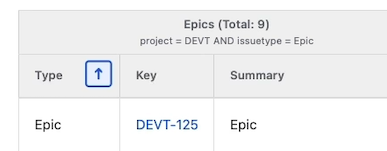
Click a column header to sort the snapshot by that column's values. Click the header again to reverse the order.
Grouping at view time
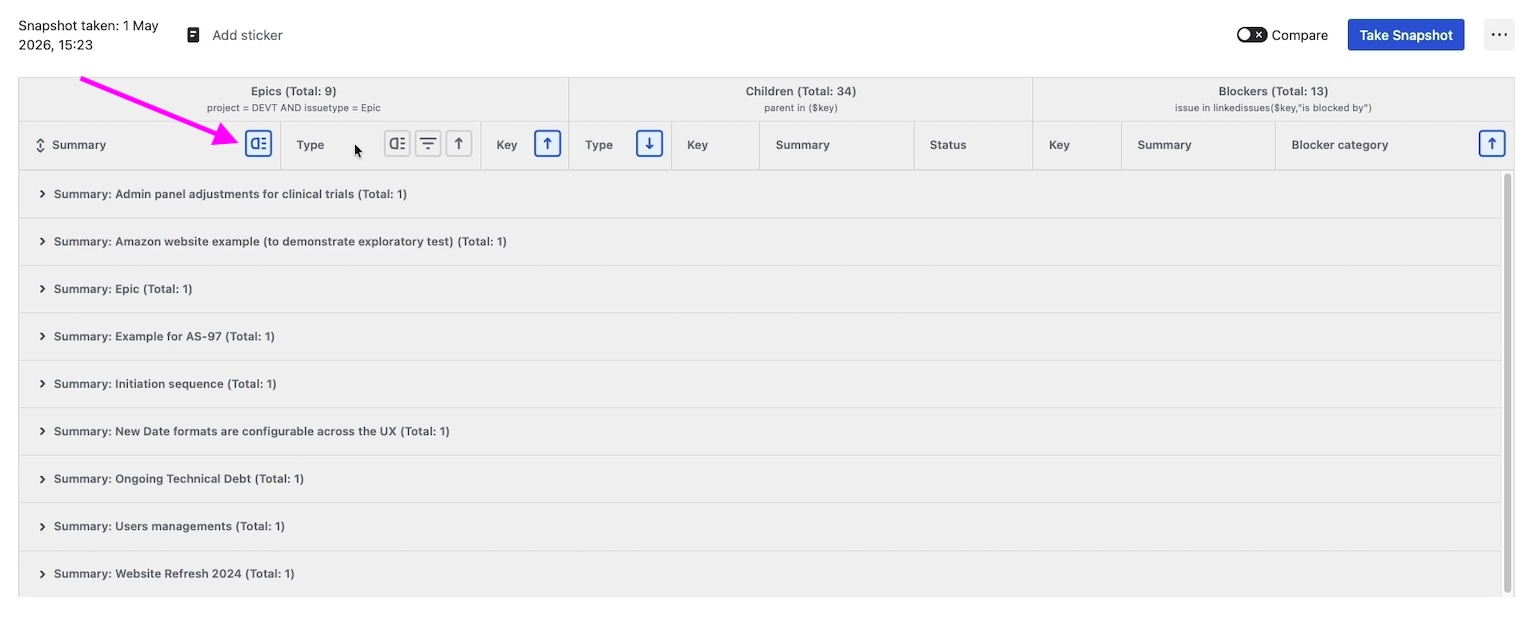
Hover over a column header on level 1 and choose Group. The snapshot reorganizes into sections by that column's values, exactly as if grouping had been configured in the macro.
Making a change permanent
If you want a particular sort, filter, or grouping to persist across page refreshes — and to be visible to every page viewer of the page — apply it from the macro configuration instead:
|
Page-view action |
Macro-configuration equivalent |
|---|---|
|
Sort by clicking a column header |
|
|
Filter by hovering on a column header |
(no direct equivalent — refine the level's JQL instead) |
|
Group by hovering on a level-1 column header |
|
|
Arrange rows in a custom order (drag and drop) |
Editing the macro configuration requires edit access to the page.
What's next
-
Grouping rows by a field — make grouping a permanent part of the macro configuration.
-
Field options: sort and don't-wrap — set a default sort that survives page refresh.
-
Comparing snapshots over time — see what changed between two snapshots of the same page.
-
Ordering rows manually — set a fixed, custom row order that persists and is visible to all page viewers.