
When you edit a Snapshots macro's configuration in a way that changes its data scope — for example, adding a field, changing the JQL, or adjusting a level — the existing snapshot data no longer matches the configuration. By default, Snapshots prompts you and offers to take a fresh snapshot immediately.
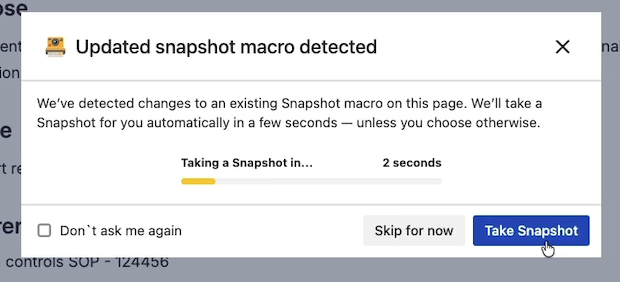
You can change how this prompt behaves: keep being asked every time, automatically take the snapshot without asking, or never auto-take. The preference is per-user and applies across the whole Confluence site.
How the auto-take prompt works
After you save a configuration change to a Snapshots macro, Snapshots checks whether the change requires fresh data. If so, it shows a small prompt asking whether to take a new snapshot immediately. The prompt also has a checkbox to remember your choice for future configuration changes.
The same preference can be set directly from your Confluence profile, without waiting for a prompt to appear.
Changing the setting from your profile
-
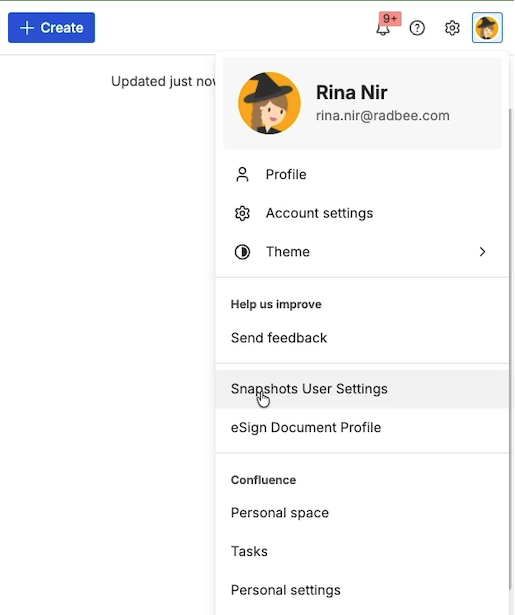
In Confluence, open your profile (top-right corner → Profile).
-
In the profile area, find Snapshots User Settings.
-
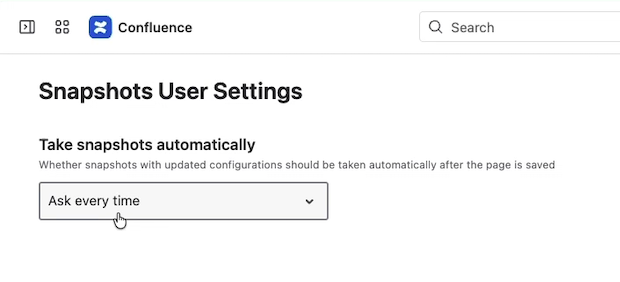
Choose one of:
-
Ask every time — the default. After every configuration change, Snapshots asks before taking a new snapshot.
-
Always take a new snapshot — Snapshots takes a new snapshot automatically after any configuration change. Useful if you usually want immediate fresh data.
-
Never take a new snapshot automatically — Snapshots leaves the macro in its current state; you take a new snapshot manually when you're ready.
-
-
The setting takes effect immediately and applies to every Snapshots macro you edit on this site.
When to change it
-
Always take — you're a frequent snapshot author and almost always want fresh data after a config change. Saves a click per change.
-
Never take — you tend to make several configuration changes in succession before settling on the final shape, and you don't want intermediate snapshots cluttering the version history.
-
Ask every time — you want to decide case by case. The default.
What's next
-
Taking all snapshots on a page — the batch-refresh button for pages with multiple snapshots.
-
How snapshots work — page versioning and what counts as a new snapshot.