
Each Snapshots macro can expose a REST endpoint that takes a new snapshot when called. Pair the endpoint with any automation tool — Jira automation, Confluence automation, a CI/CD pipeline, a scheduled job — and the snapshot refreshes itself without anyone clicking Take snapshot.
By the end of this page, you have an automation endpoint enabled on a specific snapshot and know how to call it.
Use cases
-
Refresh a weekly status snapshot every Friday morning before the report is sent.
-
Refresh a release-scope snapshot the moment a Jira version is released.
-
Refresh a customer-facing snapshot whenever a relevant Jira issue transitions to a particular status.
-
Refresh a test-execution snapshot from a CI/CD pipeline after a test run completes.
1. Enable automation on the macro
-
Edit the page and open the macro configuration.
-
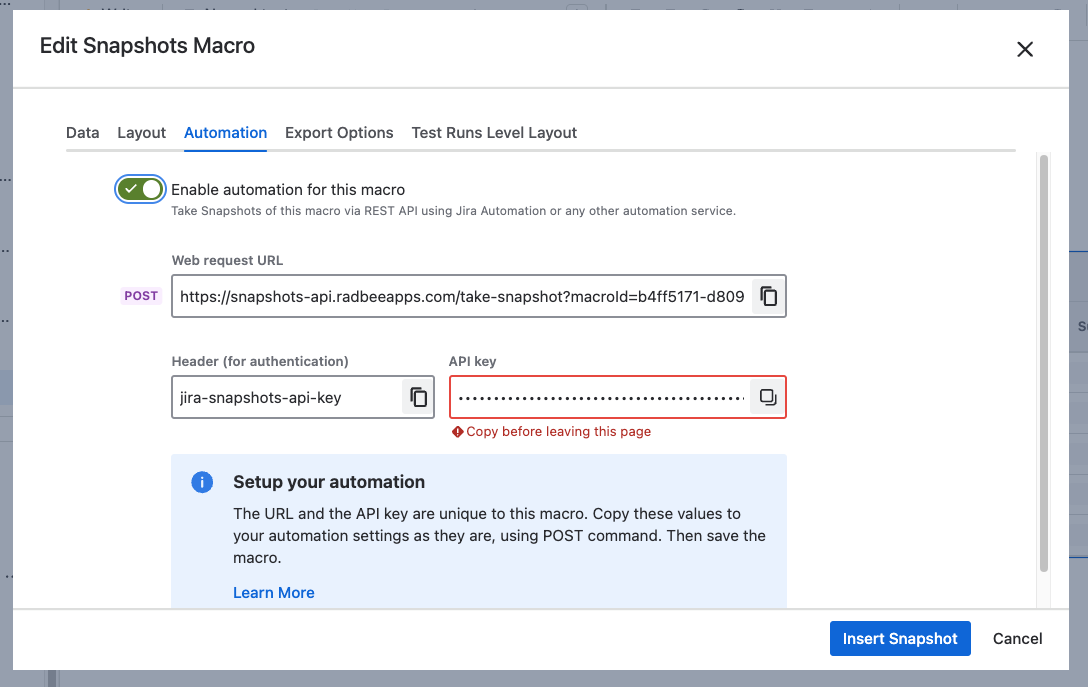
Switch to the Automation tab.
-
Tick Enable automation for this macro. Two pieces of information appear:
-
Web request URL — the endpoint, specific to this macro on this site.
-
API key — the authentication value.
-
-
Copy the API key now. This is the only time it's shown. After you save, the key is no longer retrievable. Save it in your password manager or wherever your automation will read it from.
If you forget or lose the key, you can regenerate a new one from this same tab — but every existing automation that used the old key will need to be updated.
-
Save the macro configuration and republish the page. The endpoint goes live as soon as the page is republished.
2. Call the endpoint
Send a POST to the web request URL with the API key as a header. The header name is jira-snapshots-api-key.
curl --location --request POST '<WEB-REQUEST-URL>' \
  --header 'jira-snapshots-api-key: <API-KEY>'
A successful call queues a new snapshot for the macro. The new snapshot's data appears on the page within a few seconds, exactly as if you had clicked Take snapshot in the UI.
The web request URL and API key are scoped to this single macro. To trigger many snapshots at once, or to trigger a snapshot without referencing a specific macro, see Administering Snapshots automation for the site-level global API key.
Recipes
-
Triggering snapshots from automation — worked example with a Jira Automation rule.
-
Triggering a Snapshot from a GitHub Action — worked example with GitHub Actions and Python.
-
Using Automation to Create Pages With Snapshots — combining the global key with Confluence templates to auto-generate pages.
-
Automating test coverage pages for your current version — a test coverage report that always reflects your current version, using a snapshots variable.
Revoking automation for a macro
To stop existing automations from triggering this macro:
-
Regenerate the API key. All existing automations that hold the old key stop working immediately, until they're updated with the new one.
-
Disable the macro automation. Untick Enable automation for this macro and save the configuration.
A Confluence administrator can additionally disable automation for the entire site — see Administering Snapshots automation .
What's next
-
Administering Snapshots automation — site-level controls and the global API key for triggering all snapshots on a page.
-
How snapshots work — what happens behind a snapshot, including page versioning behaviour that automation triggers.