
A test coverage report is the same page every release: the same structure, the same fields, the same tests and test runs. Only the version changes. This recipe builds that page automatically, and keeps it pointed at whichever version you are working on, by changing one value in one place.
By the end of this page, you can trigger a Jira automation rule and get a finished Confluence page containing a test coverage snapshot for your current version.
What you get
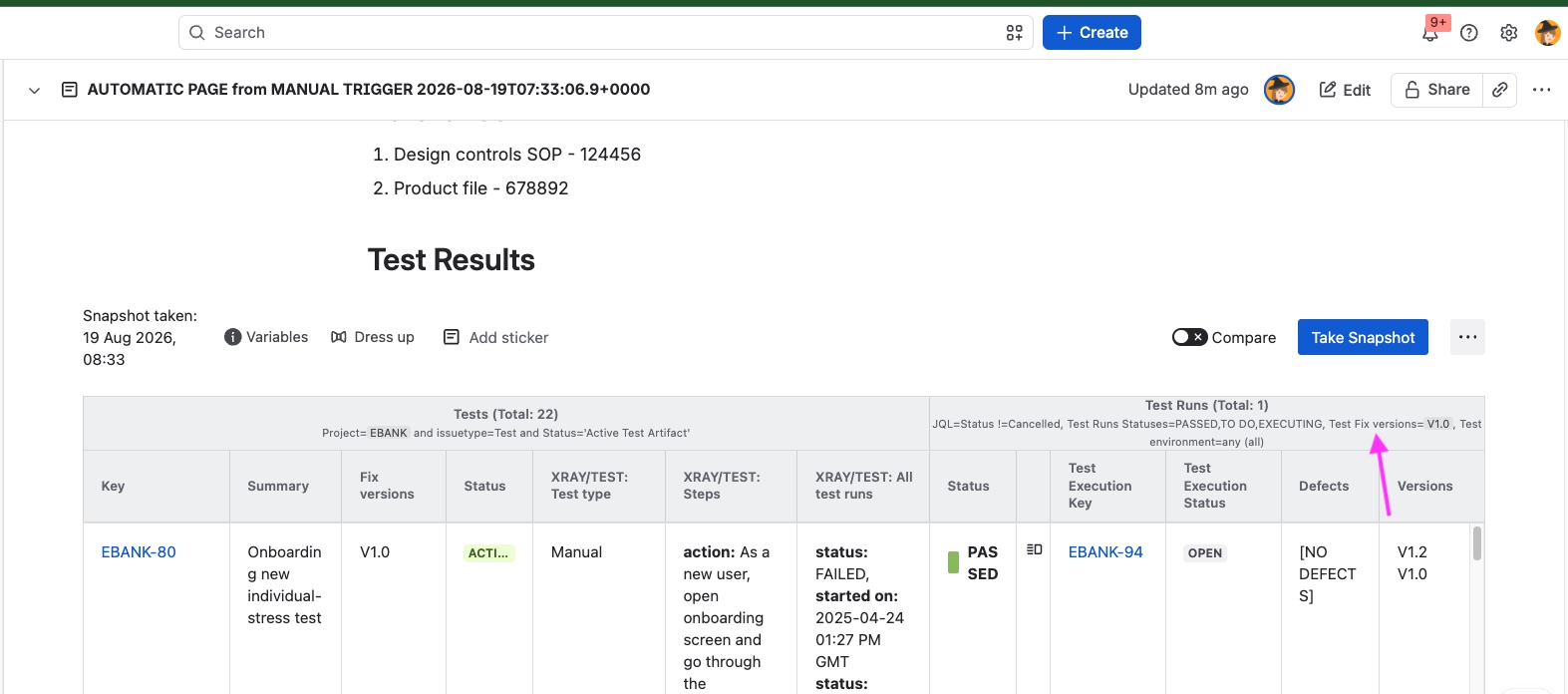
A page created from a template, with a snapshot of your tests and their test runs, filtered to the version you are currently working on. The automation rule, the template and the page structure stay the same from one release to the next. When your team moves to the next version, you update a single variable and every page generated from then on follows it.
Before you start
You need:
-
Snapshots with the Xray extension, since the report uses test run levels.
-
Confluence administrator access, to turn on automation and generate the global API key.
-
Space administrator access, to define the variable.
-
Permission to create Jira automation rules.
The ingredients
There are four things to put in place. You set them up once, and after that you reuse them for every report:
-
A snapshots variable holding your current version.
-
A Confluence template containing the page structure and the snapshot, with the variable in the filter.
-
The global API key for Snapshots automation.
-
A Jira automation rule that creates the page and takes the snapshots.
1. Define the variable for your current version
The variable is what lets this work over time. The version your team is working on changes every few weeks or months, but the structure of the report does not. You build the structure once and keep using it, and the variable is the one value that moves. It lives in a single place, and every snapshot that references it follows whatever value it currently holds.
-
Go to the space settings, then the Snapshots application settings, then Variables.
-
Add a variable for your current version, for example
myLatestVersion, and set its value to the version you are working on now.
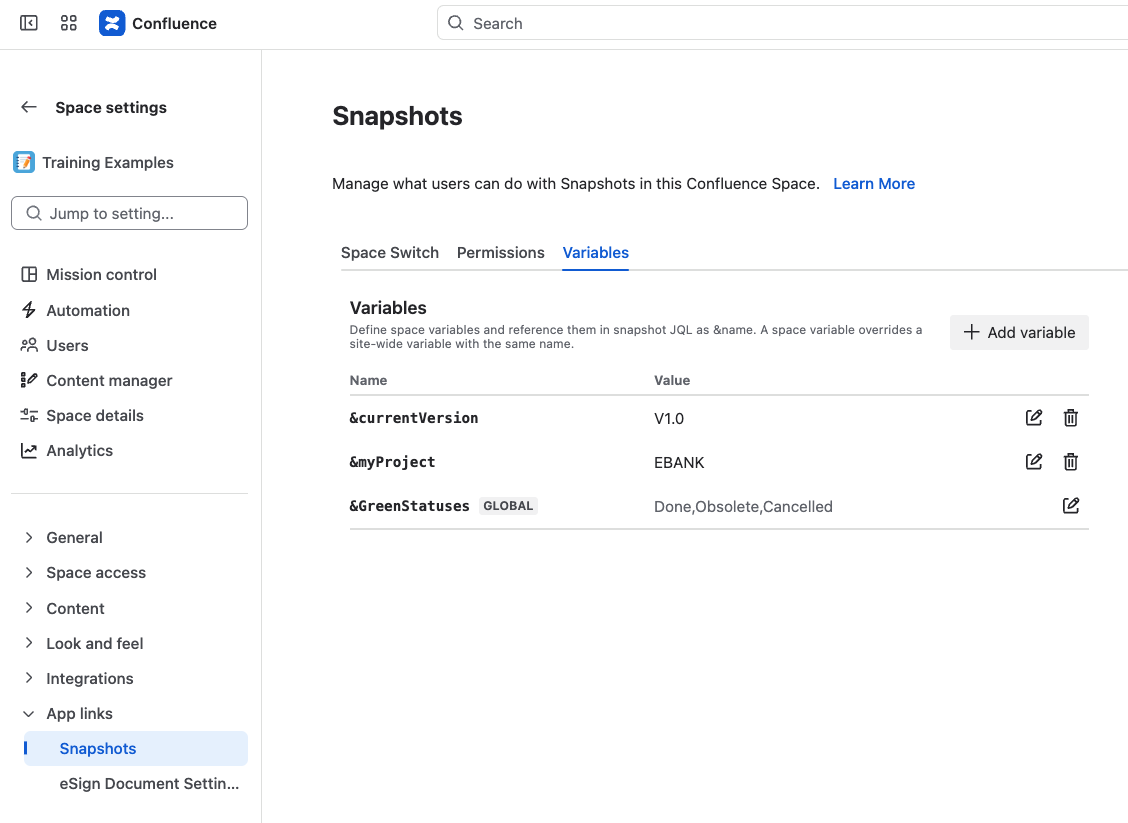
A space variable applies across the whole space, so many templates and pages can use the same current version. Changing the value in this one location affects every snapshot taken from those pages afterwards.
For the full picture, see Using snapshots variables.
2. Build the template
The template holds everything about the page except the data.
-
Create a Confluence template. A global template works for the whole site; a space template works if the recipe belongs to one space. Both are fine.
-
Put the page structure in it: the headings and the standard text your organization expects before the report.
-
Add a Snapshots macro with the levels you want. For a test coverage report that is usually tests at one level and their test runs at the next.
-
Set the fields you want to display.
-
In the filters, reference your variable rather than typing a version. Use it for the tests, and for the Fixed version of the test run level.
A global template shows an error on space variables, and you can ignore it. A global template does not belong to any space, so a space-level variable cannot resolve while you are editing it. The error does not prevent you from saving the template, and the variable resolves normally once a page is created in a space.
3. Turn on automation and generate the global API key
You need to be a Confluence administrator for this step.
-
Go to the Snapshots configuration area.
-
Open the Automation tab.
-
Make sure automation is allowed.
-
Generate a global API key and keep it somewhere safe. The automation rule needs it.
For more on the site-level controls, see Administering Snapshots automation.
4. Build the Jira automation rule
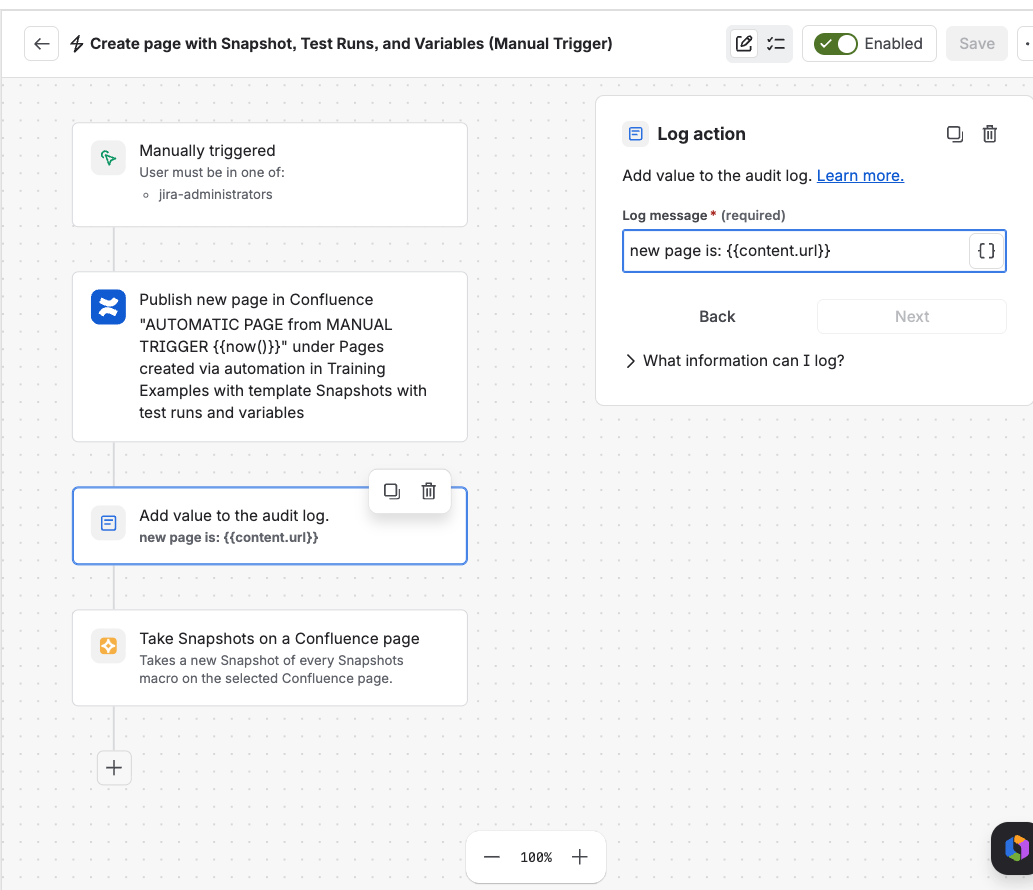
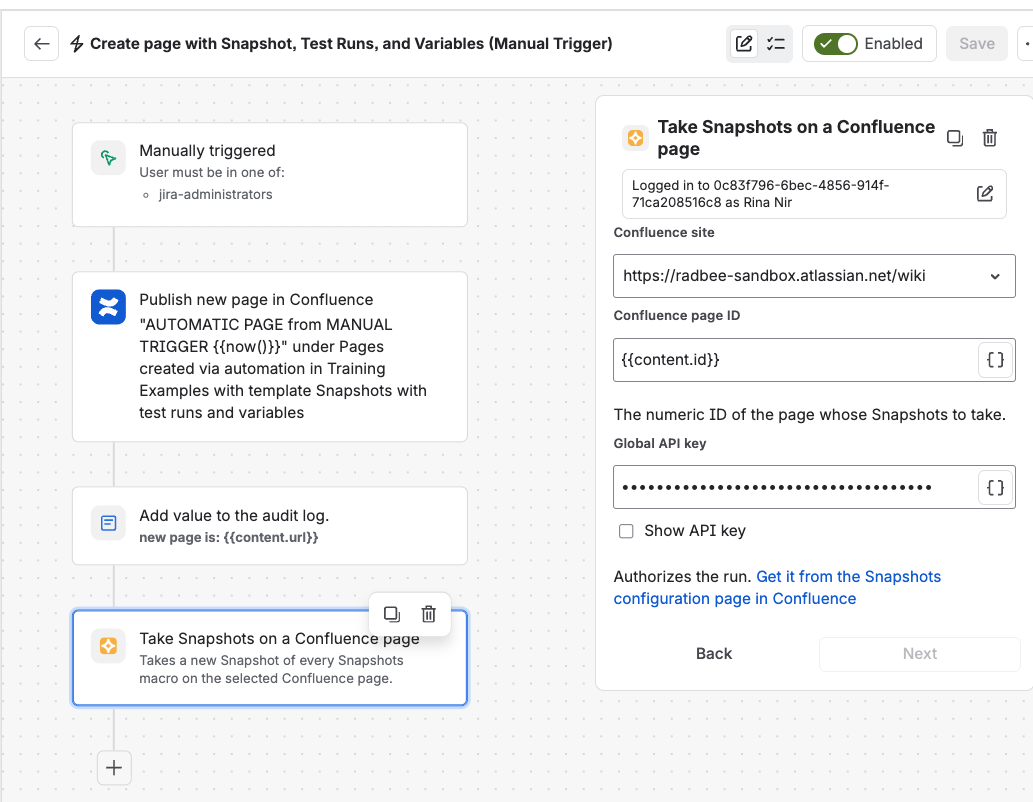
Build this rule in Jira, not in Confluence. The action that takes the snapshots is currently available only in Jira automation. A Confluence version depends on changes on the Atlassian side and is not available yet.
Here are the steps:
-
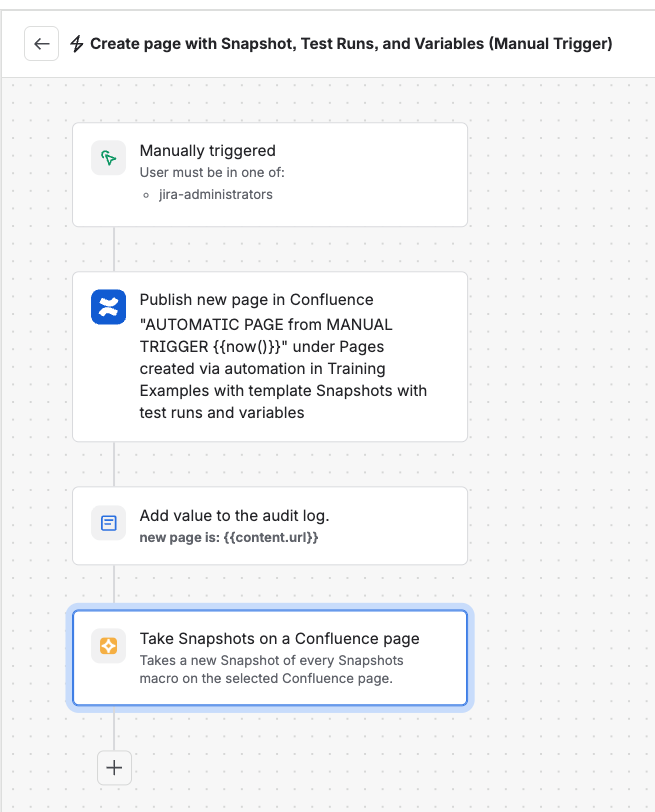
Trigger. A manual trigger works for testing the rule. In practice, tie it to something real in your testing process: a test plan transitioning to closed, or another transition that means the testing is finished and the report should exist.
-
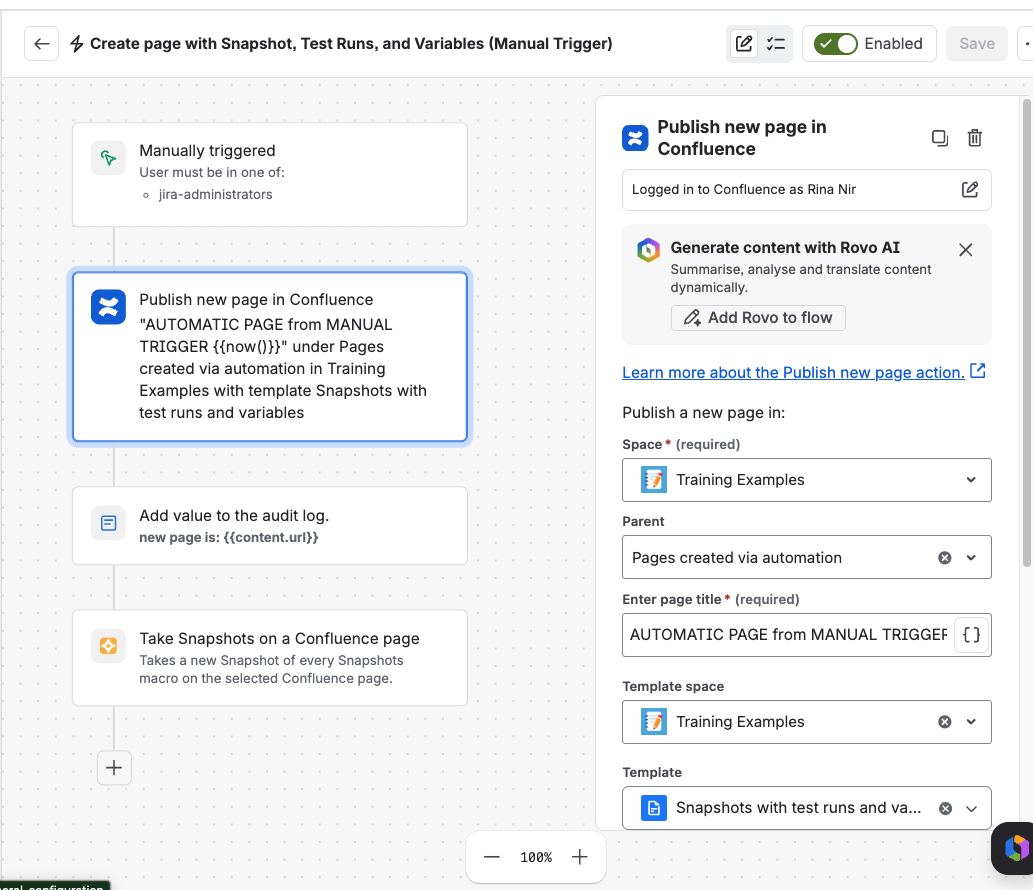
Create the page. Use the Confluence publish new page action, which is Atlassian's own. Select the template you built in step 2. Using a template is by far the easiest way to define the content of the generated page.
-
Log a message with a reference to the new page. Optional, and worth doing. It makes troubleshooting much easier later.
-
Take the snapshots. Use the Snapshots action Take Snapshots on a Confluence page. Give it the content ID of the page created a moment ago, and the global API key from step 3. This is what populates the page with data.
Rolling over to the next version
When your team moves from one version to the next, update the variable. One value, one location. Every page generated after that reflects the new version, and so does every existing snapshot that uses the variable, the next time it is taken.
The automation rule, the template and the page structure all stay as they are.
Where the pages appear
Pages created by the rule appear wherever the publish new page action is configured to put them. Many teams point the rule at a dedicated parent page so that generated pages collect in one predictable place.
Each generated page records that it was created by automation, which makes it easy to tell apart from pages people wrote by hand.
What's next
-
Using snapshots variables. The variable model this recipe depends on, including variables in test run levels.
-
Using Automation to Create Pages With Snapshots. The general version of this pattern, without the version variable.
-
Administering Snapshots automation. Site-level controls and the global API key.
-
Snapshots Test Report macro. The other run-selection options for test run levels.