
A snapshot accumulates a new version each time you take fresh data. Most of those versions are routine — daily reports, weekly status updates. Occasionally one matters more than the others: the version you presented to stakeholders, the version that captured a release, the version that supports a regulatory submission. A sticker is a tag you attach to a specific snapshot version so you can find it again easily.
Stickers are searchable, visible in the version-comparison list, and preserved on the historical version of the page. Use them when "I need the version we discussed in the steering meeting last quarter" might come up later.
When to use a sticker
-
You ran a stakeholder review against a specific snapshot and want to recall that version weeks or months later.
-
A snapshot represents a milestone — a release, a sign-off, an audit checkpoint.
-
You'd otherwise have to scroll through dozens of historical versions to find the one you need.
1. Add a sticker to the current snapshot
-
Open the page with the snapshot.
-
Above the snapshot table on the left, near the snapshot timestamp, use the sticker control to attach a sticker to the current version. Give it a short descriptive name — for example,
Steering review – Q1 2026,Release 4.2 sign-off, orAudit baseline.
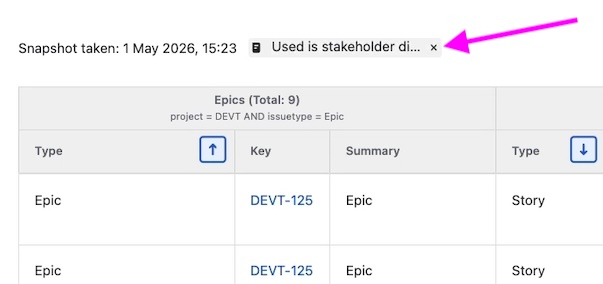
The sticker shows on the snapshot for as long as that version is the current one. It is part of the snapshot's metadata, not the page itself, so it doesn't change the page version count.
2. Take subsequent snapshots without losing the sticker
When you take a new snapshot, the page now shows the new (unstickered) data — the sticker stops appearing on the live page because it's bound to the previous version. The sticker isn't lost; it stays attached to the version it was applied to. You'll find it on the version-comparison list and on the historical page version.
3. Find a stickered snapshot later
There are two places stickered versions surface:
-
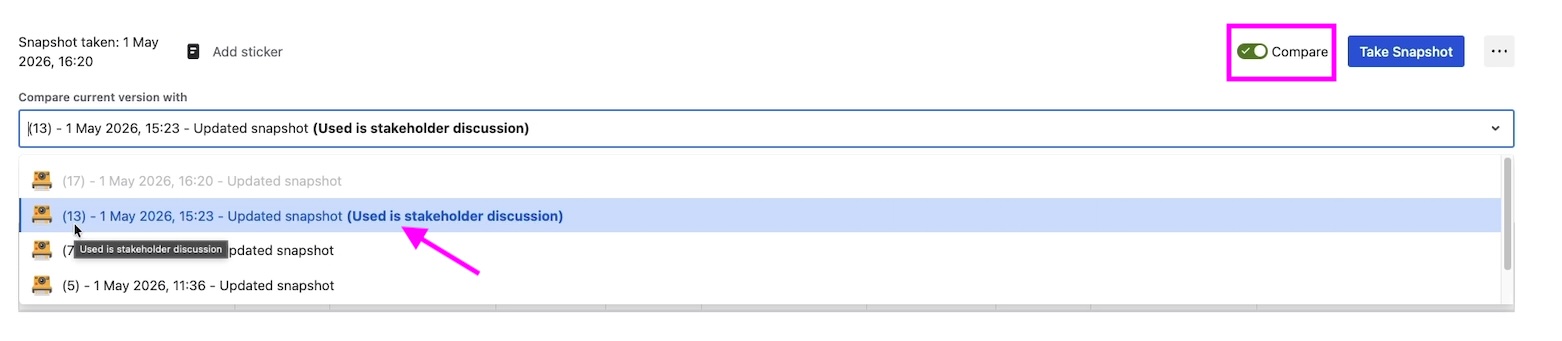
-
Page version history. Open the page's Confluence version history and navigate to the historical version that corresponds to the stickered snapshot. The page renders with the sticker visible on the snapshot, exactly as it appeared at the time.
What's next
-
Comparing snapshots over time — the full Compare workflow, where stickers help you choose which snapshots to compare.
-
How snapshots work — page versioning behavior and how snapshot data is stored.