
Each field in a Snapshots macro level has four small per-field options that you can set from the field list in the macro configuration. Group and Placeholder have their own pages — see Grouping rows by a field and Using placeholders. This page covers the other two: Sort and Don't wrap field.
To find these options, edit the page, open the macro configuration, and hover over the field name in any level's field list. The four icons appear next to the field.
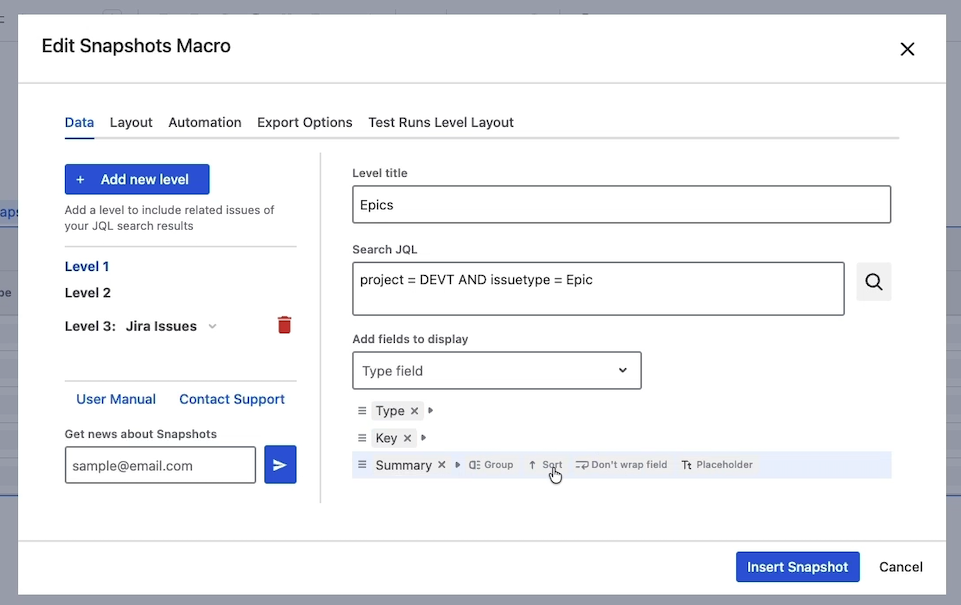
Sort
Sets the default sort order for rows on the column. Snapshots orders the rows of the level by the values in this field, ascending or descending.
When you apply a sort to a field on level 2 or deeper, the sort is scoped to each level-1 group. Rows within the same level-1 parent are sorted, but the level-1 ordering itself isn't affected.
A page viewer can override the configured sort at view time by clicking on the column header — see Sorting, filtering, and grouping on the page. The override doesn't persist; it's gone when the page is refreshed.
To set the sort:
-
In the macro configuration, hover over the field you want to sort by.
-
Click Sort.
-
Choose ascending or descending.
-
Save the configuration with Insert snapshot and republish the page.
You can sort by only one field per level.
Don't wrap field
Tells Snapshots not to wrap the field's values across multiple lines, even if the value is wider than the column. The cell shows the value on a single row; if it doesn't fit, the table column accommodates the width.
This is useful for fields whose values look strange when wrapped — issue keys, version numbers, status names, or anything that should read as a single label.
If the same field appears on more than one level, "don't wrap" applies to all instances at once. There's no per-level override.
To set don't-wrap on a field:
-
In the macro configuration, hover over the field.
-
Click Don't wrap field.