
A snapshots template captures a snapshot's full configuration (levels, search JQLs, fields, and display options) and saves it as a reusable starting point. Anyone you share the template with can build a new snapshot from it instead of configuring everything from scratch, then adjust as needed.
Templates make snapshots faster to create and easier to keep consistent across a site. A template called Tests and Test Runs, for example, defines once how your team captures tests with their runs, and everyone reuses the same structure on every page that reports on tests.
What gets saved in a template
A template stores everything in the macro configuration:
-
All levels, including Jira Issues, TestRail, Xray, and Test Runs level types
-
Search JQLs and other level filters
-
Selected fields and their order on every level
-
Field options like sort and don't-wrap
-
Placeholders, grouping, and stickers
-
Layout settings, scrolling settings, and any level-specific layout settings (such as Test Runs Level Layout)
-
Export Options
The one thing not saved is the Automation API endpoint. If you build a snapshot from a template whose source had automation enabled, you still need to enable automation on the new snapshot and copy the endpoint URL into your automation tool. See Triggering snapshots automatically.
Starting a new snapshot from a template
When at least one template is visible to you on the site, inserting a Snapshots macro first opens the Create new snapshot dialog:
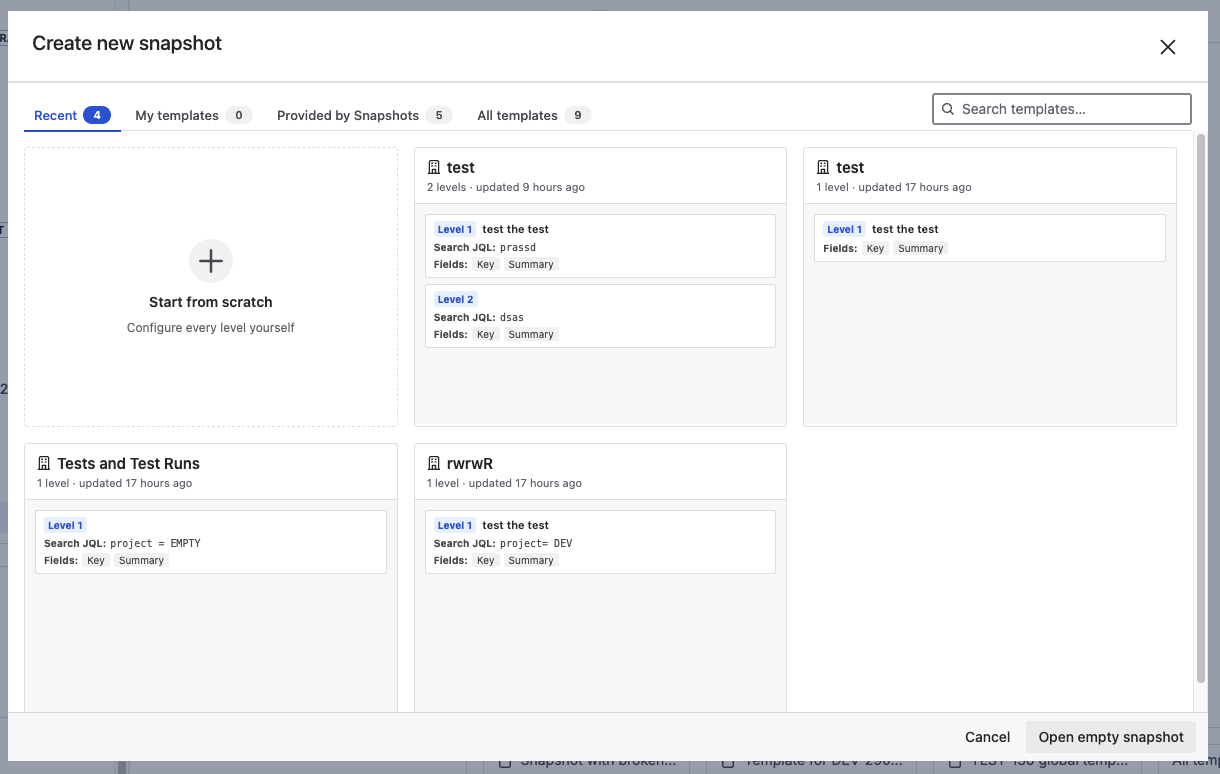
The dialog has four tabs:
-
Recent: templates most recently added or modified on the site.
-
My templates: templates you created.
-
All templates: every template visible to you, including those shared with your organization by others.
-
Provided by Snapshots: predefined templates that ship with the app. See Templates provided by Snapshots below.
Use the Search snapshot templates… field to find a template by name.
To start from a template, click its tile and continue configuring the snapshot. To start without a template, click Start from scratch and then Open empty snapshot.
If no templates are visible to you, the Create new snapshot dialog is skipped and the macro configuration opens empty directly.
Saving the current configuration as a template
You can save any snapshot configuration as a template, whether you started from scratch or from another template.
-
In the macro configuration, click the Snapshot Template handle at the top of the screen.
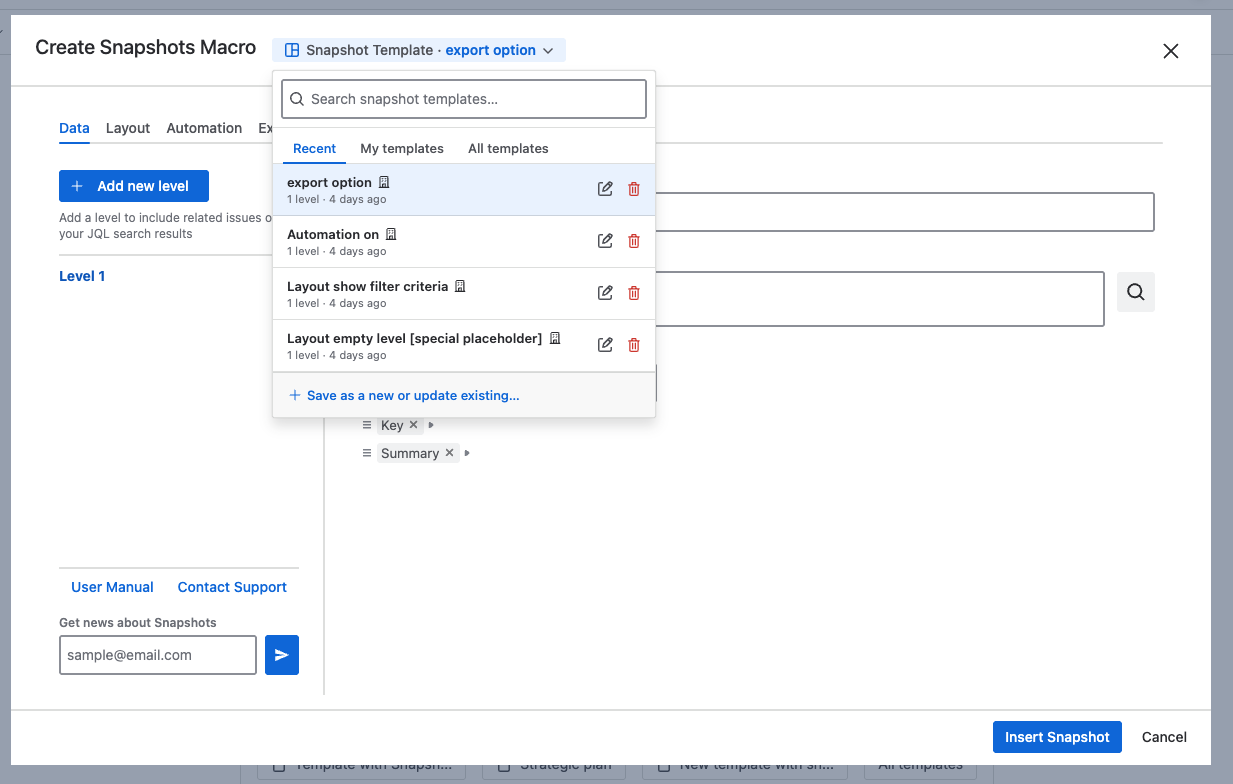
-
At the bottom of the dropdown, click Save as a new or update existing….
-
Choose Save as new template, then:
-
Enter a name.
-
Choose Visibility: Just me (the template appears only in your picker) or My organization (everyone on the site sees it). The default is Just me.
-
-
Confirm.
The template now appears in the Create new snapshot dialog and in the Snapshot Template dropdown on every macro configuration on the site, within the visibility you set.
Saving a template does not insert the snapshot. After saving, you remain in the macro configuration and continue setting up the snapshot you came to build.
Templates provided by Snapshots
Snapshots ships with a set of predefined templates you can use as starting points. They appear in the Provided by Snapshots tab of the Create new snapshot picker.
The provided set covers common snapshot patterns:
-
Filtered issue list. A single-level list of issues in a project, with a default set of fields. Placeholders let you pick the project and choose the statuses to exclude (done-equivalent statuses are excluded by default). Suited for status reports.
-
Epics and child work items. A two-level snapshot with epics at the top and their child work items below. Placeholder for the project.
-
Release scope. A single-level list of issues in a specific release. Placeholders for the project, issue types, and fixed version.
-
Test runs report. A two-level snapshot with tests at the top and their runs below. Requires the Xray extension.
-
Release test report. A three-level snapshot with stories or other non-test issues at the top, then the tests linked to them, then the test runs. Requires the Xray extension.
Site administrators can enable or disable which of these appear in the picker on your site. See Managing snapshots templates.
Templates with placeholders
Some templates leave part of their configuration open, so you can adapt them without editing the underlying JQL. These open parts are called placeholders.
When you pick a template that has placeholders, Snapshots shows a dialog with an input for each one. Enter your values (for example, the project key, or the fixed version), and the macro configuration is filled in with those values baked into the JQL.
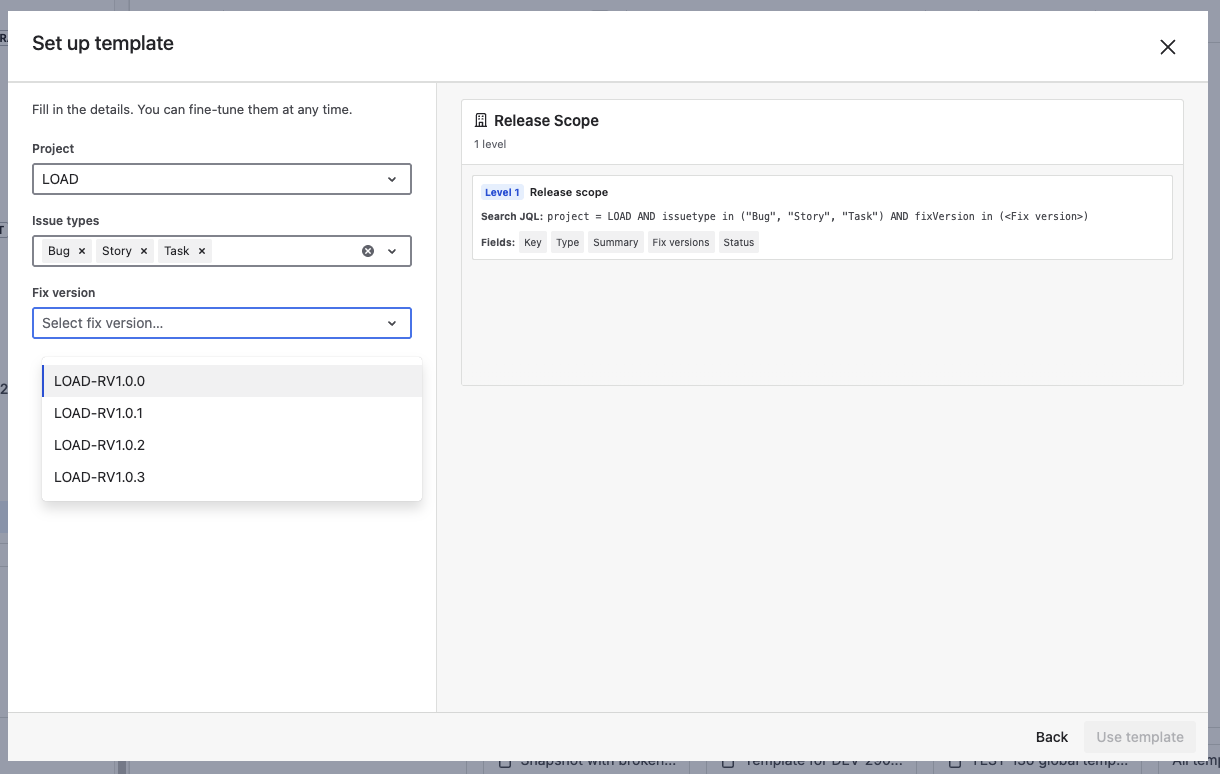
Placeholders appear inside a template's JQL. The templates provided by Snapshots all use placeholders where the configuration depends on something specific to your site.
Updating an existing template
To roll changes into an existing template, you make those changes during a session that is associated with the template. The template's owner (the person who created it) and site admins can update it.
-
Insert a Snapshots macro on a page and pick the template from the Create new snapshot dialog. The Snapshot Template handle at the top of the macro configuration shows the template name.
-
Make the configuration changes you want to roll into the template.
-
Open the Snapshot Template handle, click Save as a new or update existing…, and choose Update existing. Pick the template to update.
-
Confirm.
If you are not the template's owner or a site admin, the Update existing path is unavailable. You can still Save as new template to create your own copy.
Switching templates mid-session
To swap the current macro to use a different template:
-
Open the Snapshot Template handle.
-
Pick a different template from the list.
-
Confirm.
The macro configuration is replaced with the new template's settings. Any unsaved changes on the current configuration are discarded.
You can also use this path from a snapshot you started from scratch. When no template is associated, the Snapshot Template handle still opens the same dropdown.
Renaming, changing visibility, or deleting a template
In the Snapshot Template dropdown, each template row has two inline icons on the right:
-
The pencil icon edits the template's metadata (name and visibility).
-
The trash icon deletes the template.
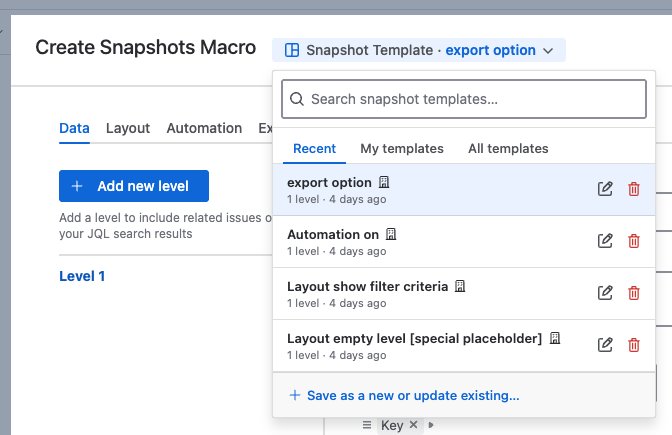
These icons appear only on templates you can manage: those you own, or any template if you are a site admin.
What's next
-
Configuring multi-level snapshots. The level model that templates capture.
-
Triggering snapshots automatically. The Automation API endpoint that templates do not carry over.
-
Permissions for snapshots. How visibility of snapshots on pages works.