
If your team uses Jira Service Management Assets to model products, customers, services, or any other resources, you can now bring that data into snapshots. When a Jira issue links to an Asset object through an Asset field, the snapshot displays the object the same way Jira does, with its icon, name, object key, and attributes.
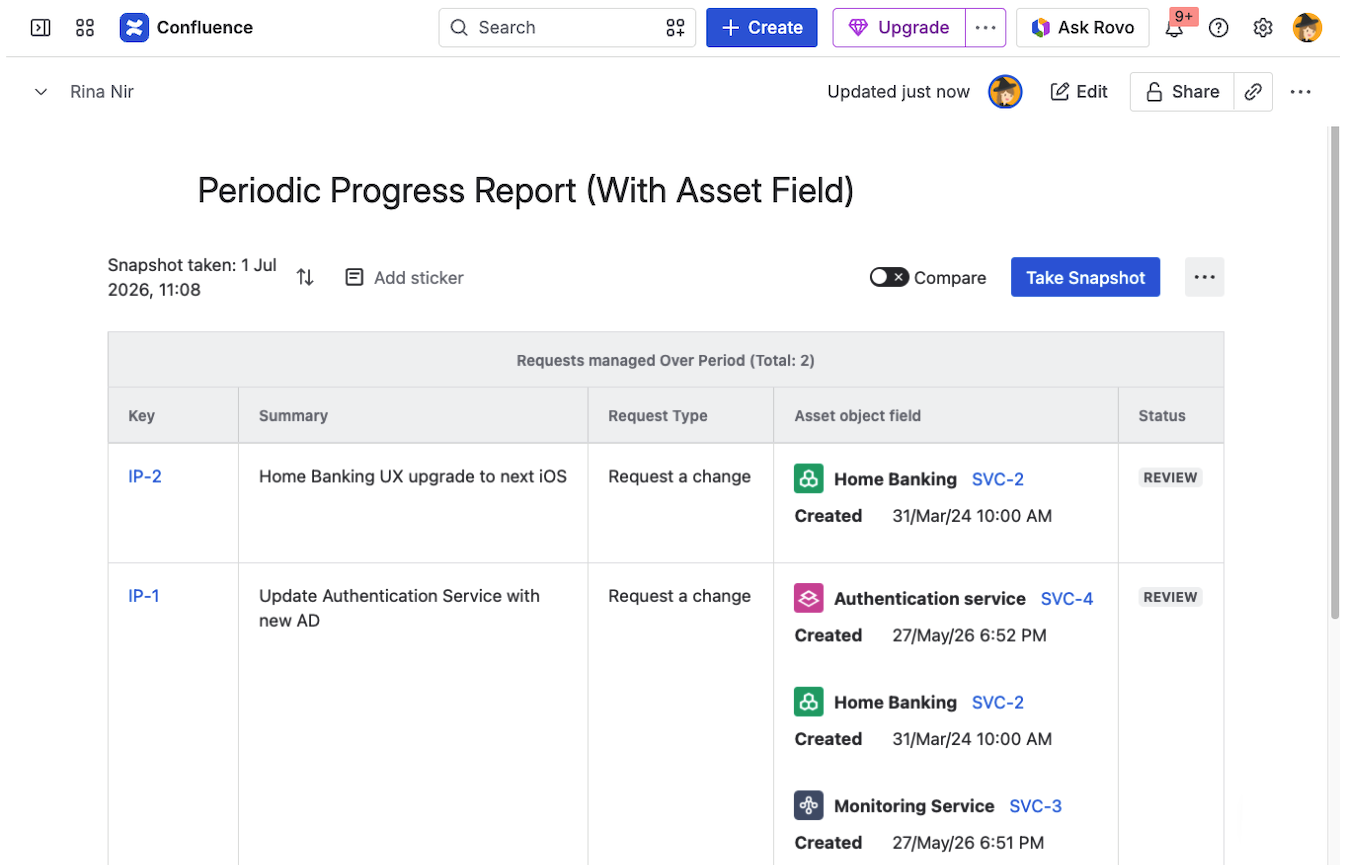
Adding an Asset field
Asset fields work the same as any other Jira issue field. In a Jira Issues level:
-
Open the Fields tab in the macro configuration.
-
Search for the Asset field and click to add it.
-
Save the macro and take a new snapshot.
Each Asset object on the issue is rendered with its icon, name, key, and attributes, just as it appears in Jira.
Use cases
Showing readable Asset data is particularly useful when the snapshot is shared with audiences outside the engineering team:
-
Client-facing release pages. A snapshot can list all the changes affecting a specific customer or product, with the related Assets shown by name instead of by internal ID.
-
Service-impact reports. Show which services or components a set of incidents affected, using your Assets model as the source of truth.
-
Change advisory pages. Pull in changes by category, with the impacted Assets rendered alongside.
What's next
-
Configuring multi-level snapshots. Build snapshots with multiple levels of Jira issues.
-
Field options: sort and don't-wrap. Configure how individual fields display.