
Atlassian Automation rules are the easiest way to trigger snapshots automatically. A rule can run on-demand, on a schedule, or in reaction to events like releases and status changes.
There are two ways to trigger snapshots from a rule:
-
Take Snapshots on a Confluence page is a Jira Automation action that refreshes every snapshot on a target page. Simple to set up and works on any page without per-snapshot configuration. Best for most cases.
-
Send Web Request is the generic HTTP action available in both Jira Automation and Confluence Automation. Pointed at a per-snapshot endpoint, it refreshes only that specific snapshot. Best when you need per-snapshot control.
Both are supported. Pick whichever fits your rule.
The Take Snapshots action is currently available in Jira Automation only. Support in Confluence Automation is planned for a future release.
Using the Take Snapshots on a Confluence page action
This is the simplest way to refresh snapshots from a Jira Automation rule. It does not require any per-snapshot setup.
Before you start, a Confluence site admin needs to have generated the global API key. See Administering Snapshots automation.
To set up the rule:
-
In your Jira Automation rule, add a new action and search for Take Snapshots on a Confluence page. The action may appear at the bottom of the results list.
-
Connect the action to Confluence. On first use, click to authorize.
-
If your account has access to more than one Confluence site, choose the target site.
-
Enter the Confluence page ID of the target page. You can find the ID in the page's URL.
-
Paste the global API key.
-
Save the action.
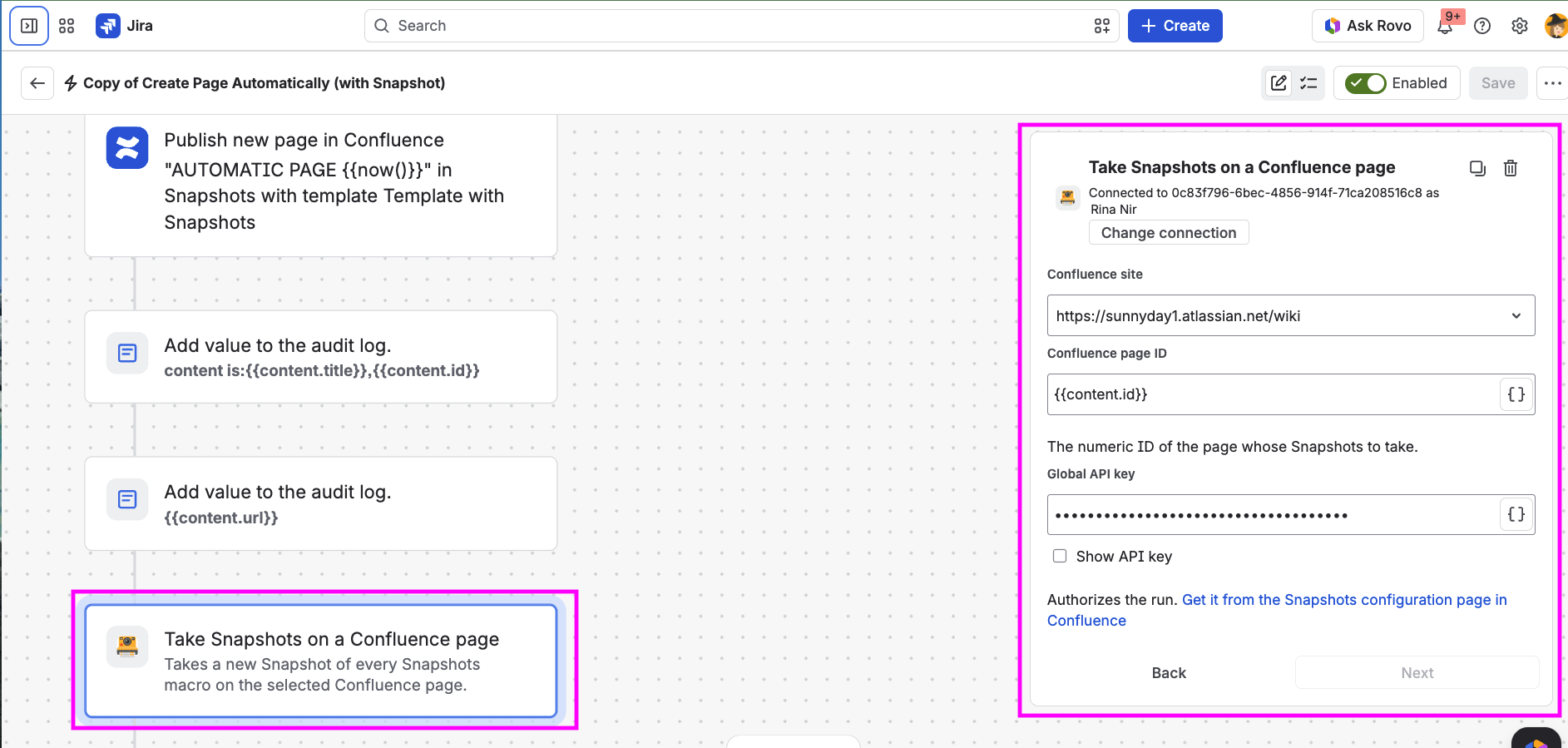
When the rule fires, every snapshot on the target page is refreshed. You do not need to enable automation on the individual snapshots.
Sending a web request to refresh a specific snapshot
Use this approach when you want to refresh a specific snapshot rather than every snapshot on the page. Enable automation on the snapshot, then use the generic Send Web Request action to call the snapshot's endpoint.
-
Enable automation for the snapshot you want to trigger via automation. See Triggering snapshots automatically.
-
Copy and keep the two details provided in the snapshot macro configuration screen:
-
The web request URL
-
The API key
-
-
Define a Jira Automation rule, and in this rule, incorporate a Send Web Request action. Set these parameters:
-
Web request URL: paste the web request URL from the snapshot.
-
HTTP method: set to POST.
-
Web request body: set to EMPTY.
-
Headers: set a header with:
-
Key:
jira-snapshots-api-key -
Value: the API key from the snapshot.
-
-
.png?cb=f735dc2de1db6045522dc85d1c2728b3)
The same Send Web Request action is available in Confluence Automation and works the same way. The URL and headers to send are identical.
Troubleshoot failure code 411
We have seen sometimes that a perfectly valid configuration results in an automation that fails with a response code 411.
To resolve:
-
To the failing Send Web Request action, add a header:
-
Key:
Content-Length -
Value:
0
-
What's next
-
Triggering snapshots automatically. The per-snapshot automation flow used by the web-request approach.
-
Administering Snapshots automation. Admin controls for automation site-wide, including the global API key.