
Snapshots Configuration is the central admin area where a Confluence administrator manages how Snapshots behaves across the site — Jira connection, space-level availability, automation, permissions, and formatting defaults.
This page is a reference for the tabs of the Snapshots Configuration area. Several tabs link out to dedicated pages where the deeper workflow lives.
To open Snapshots Configuration, go to Confluence admin → Apps → Snapshots Configuration.
You'll see two sibling apps next to it under Apps:
-
Snapshots Backup Restore and Migration Assistance — for backing up snapshot metadata and migrating between sites. See Backing up and restoring snapshots.
-
Snapshots Traceability Extension — present only if the Traceability Extension is installed. See Configuring the Xray connection.
Both have their own pages.
Jira connection
The first tab. Holds the URL of the Jira Cloud site that Snapshots reads data from.
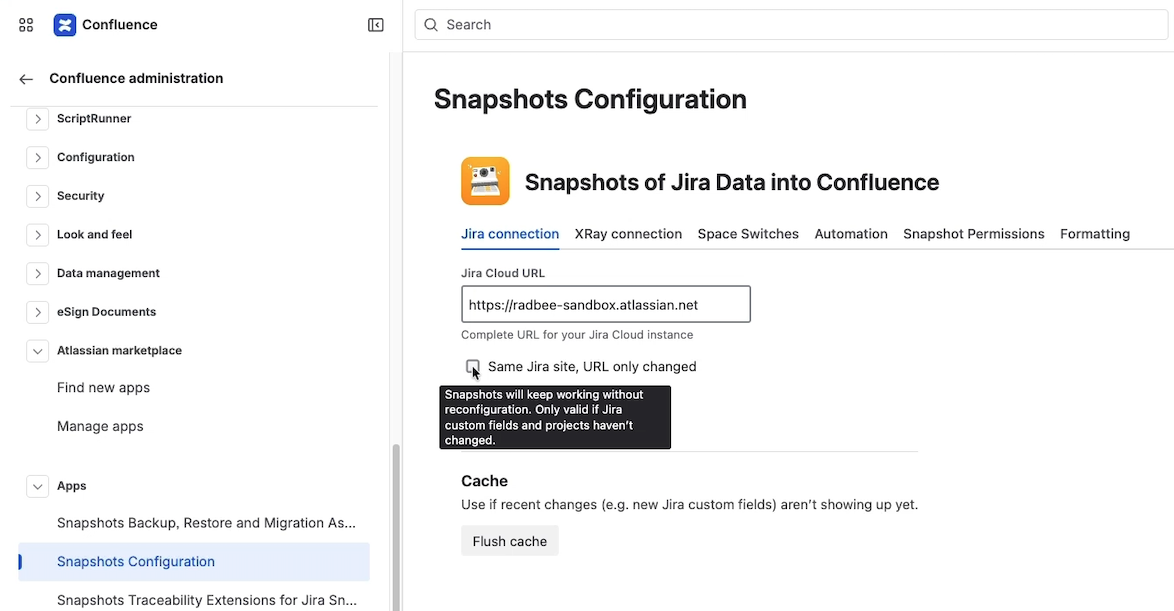
If the URL changes, update it here. There's a single subtlety to know about:
Same Jira site, URL only changed
A tickbox on the Jira connection tab. Leave it unticked when you're connecting Snapshots to a different Jira site than before. Tick it when the Jira site is the same site but its URL has been renamed.
The reason for the distinction: if Snapshots has captured data from Jira A, it refuses to capture data from Jira B by default — there's a real risk that field definitions, custom fields, and project keys differ between sites, which would silently corrupt subsequent snapshots. Ticking the box tells Snapshots that A and B are actually the same Jira, just renamed, so existing macros keep working as if nothing changed.
Cache flush
Snapshots uses a cache to keep operations responsive. If you've made a change in Jira (for example, added a custom field) and Snapshots doesn't reflect it, flushing the cache forces a fresh read on the next snapshot.
For the broader troubleshooting of when to flush, see Clear cache if recent Jira data is not showing in snapshots.
Xray connection
Used when Snapshots integrates with Xray Test Management for Jira. See Configuring the Xray connection for the full setup.
Space switches
Controls where Snapshots is enabled across the site.
-
Default behavior for new spaces. By default, Snapshots is enabled in every new space (personal and global). Switch this to disabled if your default policy is to opt spaces in rather than out.
-
Space admin override. When enabled, individual space admins can switch Snapshots on or off for their own space (see Disabling Snapshots for a space). Disable this to centralize the setting under Confluence admin only.
-
Per-space toggle list. A central list of every space on the site with a toggle for each. Use this to enable or disable Snapshots in individual spaces from one location.
Automation
The site-wide controls for snapshot automation: master enable/disable toggle, the global API key for triggering all snapshots on a page, and the list of issued API keys for audit and revocation. See Administering Snapshots automation for the workflow.
Snapshots Permissions
Two settings governing snapshot-related permissions:
-
Selected groups can take new snapshots even if they cannot edit the page. Enabled by default. When enabled, space admins may grant the take-snapshot permission to specific Confluence groups without giving page-edit access. Disable this to remove the override capability site-wide. See Permissions for snapshots.
-
This site contains Knowledge Base articles for Jira Service Management. Disabled by default. Enable this if your site hosts JSM Knowledge Base articles whose viewers don't have a Confluence license. Once enabled, you must designate which spaces are KB spaces; Snapshots will then render for unlicensed JSM users on those spaces.
Formatting
Site-wide formatting defaults that apply to new snapshots.
Snapshot scrolling default
When enabled, every new snapshot is created with snapshot scrolling switched on. Useful for sites that frequently produce large snapshots. Existing snapshots are unaffected; the change applies to new macros only.
For the per-macro scrolling option and when to use it, see Snapshots scrolling for large pages.
Date and date-time formatting
Controls how date and date-time fields are displayed in snapshots. Affects fields like Created, Updated, and any date-typed custom fields that come from Jira.
Use this to comply with internal standards or to match the date format expected by viewers of exported PDF and Excel files.
What's next
-
Permissions for snapshots — the site-level toggle for granting take-snapshot to non-editors.
-
Disabling Snapshots for a space — when to use the per-space switch.
-
Administering Snapshots automation — site-level automation controls.
-
Backing up and restoring snapshots — snapshot backup and site-to-site migration.