
By default, Snapshots is available in every Confluence space on the site. There are situations where you don't want snapshots to render — for example, in a space shared with external users who shouldn't see Jira data, or in a space whose audience doesn't need the feature. A space administrator can switch Snapshots off for an individual space.
Important caveat. Disabling Snapshots for a space hides the rendered snapshot from page viewers. It does not delete the underlying snapshot data — the JSON attachments stay on the pages. If the data must not exist on those pages at all, remove the pages or the attachments separately.
When to disable
-
The space is shared with external users (customers, contractors) and should not expose Jira-derived data.
-
The space's audience doesn't use Snapshots and you want a cleaner experience.
-
You're temporarily quarantining a space and want to suppress active snapshots while you sort it out.
If you only want to control who can take a new snapshot rather than hide them entirely, see Permissions for snapshots instead.
1. Switch Snapshots off for the space
You need space admin permission on the space.
-
Open the space settings.
-
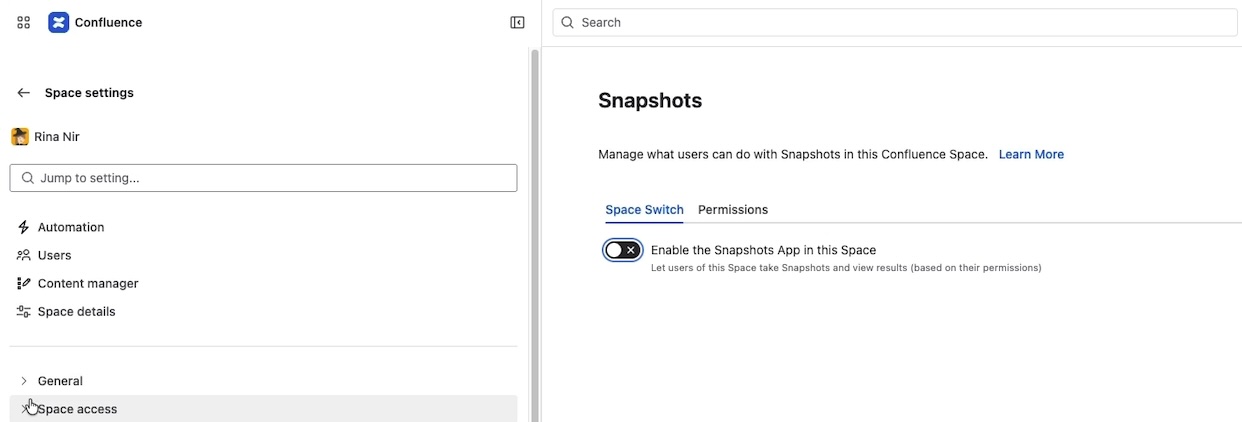
Open App links → Snapshots → Space switch.
-
Disable Enable Snapshots app in this space.
-
Save.
2. What page viewers see
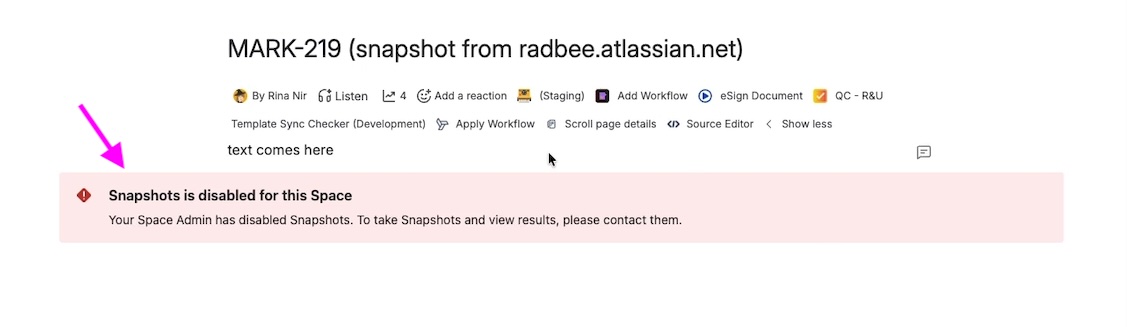
New pages in the space cannot have snapshot macros added — the macro is blocked from being inserted while Snapshots is disabled.
3. The data still exists on the page
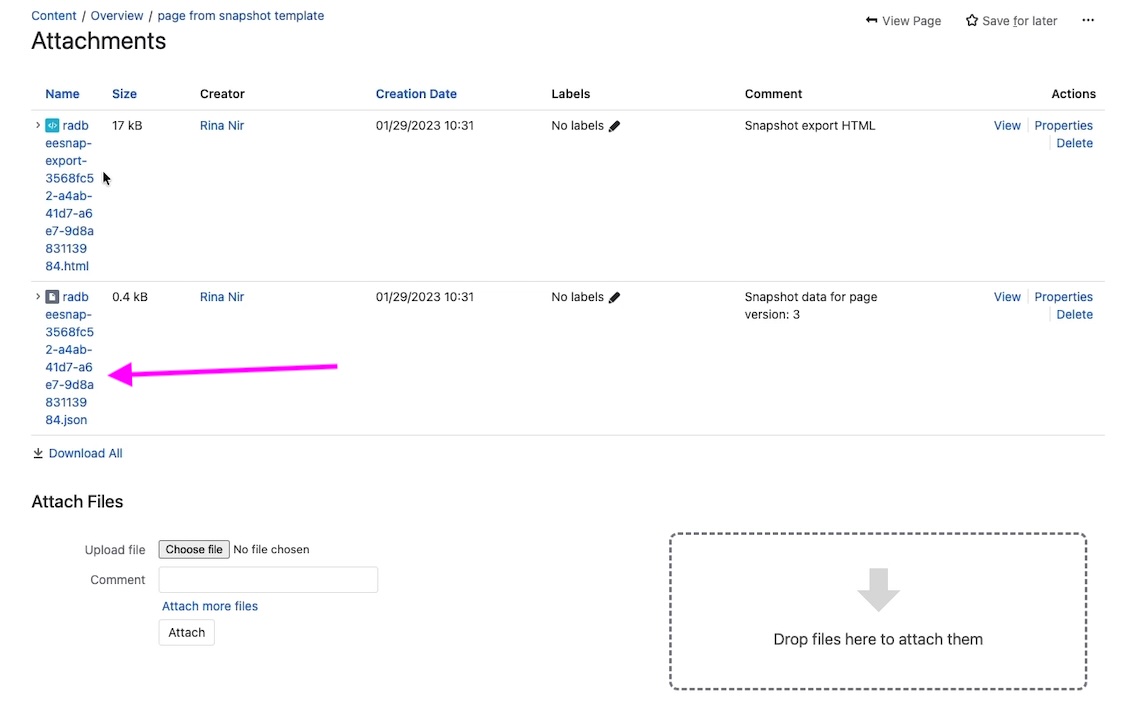
If the snapshot data should not exist at all on those pages — for example, because the data is sensitive and the page is shared more broadly than originally intended — disabling the space is not sufficient. Either delete the affected pages, or remove the snapshot attachments individually, or move the pages to a different space.
If the page is later moved to a space where Snapshots is enabled, the snapshot will render again from the existing JSON attachment, with the data captured at the time of the last snapshot.
Re-enabling snapshots in a space
To re-enable, repeat step 1 and switch the toggle back on. Snapshots in the space resume rendering immediately; nothing else needs to change. Existing snapshot data on the pages is still there and is shown as it was last captured.
What's next
-
Permissions for snapshots — control who can refresh snapshots without disabling them.
-
Configuring Snapshots admin settings — set the site-wide default and centrally enable or disable for any space.