
Snapshots stores most of its data on the Confluence pages themselves — the Jira data the snapshot captured lives as a JSON attachment on each page. Backing up Confluence backs up that data along with the rest.
However, some Snapshots metadata — page IDs, macro IDs, version history, sticker assignments, automation key registry — is stored in our own infrastructure on Google Cloud Platform. This metadata is what lets Snapshots show diff/compare views, navigate snapshot history, and keep the version-comparison list working. When you back up Confluence for business continuity, or migrate to a new Atlassian site, you should back up the Snapshots metadata too.
This page is the parent of the detailed backup and restore documentation, which is on its child pages.
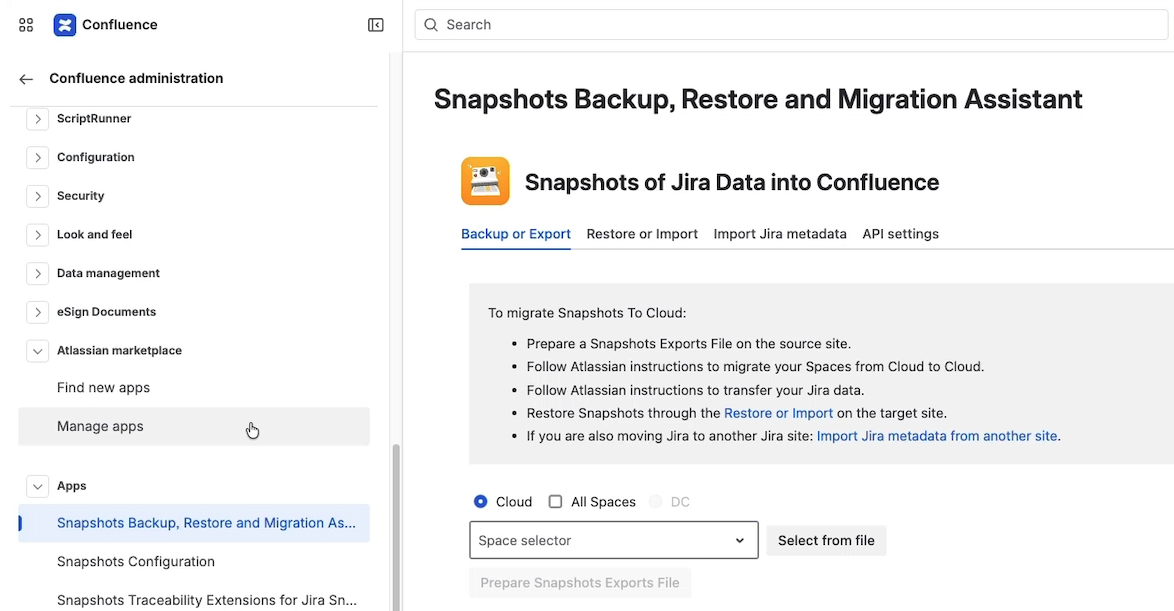
To open the backup area, go to Confluence admin → Apps → Snapshots Backup Restore and Migration Assistance.
[Screenshot needed: Snapshots Backup Restore admin area with the four tabs visible.]
When to back up
-
Periodic backup for business continuity. If you back up Confluence regularly, include a Snapshots backup in the same process so the metadata stays in sync with the pages.
-
Before migrating to a different Atlassian site. Whether the move is Cloud-to-Cloud or Data Center-to-Cloud, the Snapshots metadata must travel with the Confluence content for the snapshots to work on the destination.
-
Before any large structural change — bulk space reorganizations, mass deletions, or a site rename — so you have a recovery point.
Manual backup
The first tab is Backup / Export. Choose which spaces to include in the backup file.
Three selection options:
-
All spaces. Simplest; appropriate for whole-site backups. The resulting file may be large.
-
Select specific spaces. Use the on-screen picker. Practical for a handful of spaces.
-
Upload a CSV file with a single column listing the space keys. The most reliable option when you need to back up dozens or hundreds of spaces and want a guaranteed-correct selection.
After selecting, click Prepare snapshots export file. Snapshots generates the file; download it and store it alongside your Confluence backup.
Automated backup via API
For sites that automate their backups via pipeline, Snapshots exposes a backup API. The setup is on the API setting tab inside the same admin area.
-
Enable the API on the tab.
-
Copy the web request URL and API key that appear. The key is shown only once — save it before leaving the tab.
-
From your pipeline, send a POST to the web request URL with the API key as a header. The endpoint returns a backup file the same way the manual flow does.
The detailed REST sequence (post → poll task ID → download zip) is documented in Automatic backup via the API endpoint.
Restoring snapshot metadata
Two restore tabs cover the two restore scenarios:
-
Restore / Import — for restoring from a backup taken on Cloud (whether on the same site or a different Cloud site).
-
Import Jira data — used during migration when Jira projects move to a different Atlassian site and you need Snapshots to recognize the new project keys.
Both tabs walk you through selecting the backup file and the corresponding Jira-data file.
The full step-by-step restore instructions are in Backup and Restore, and Migration Between Sites.
Site-to-site migration
When migrating from one Atlassian site to another:
-
On the source site, take a Snapshots backup (manual or API).
-
Migrate Confluence content to the destination site using Atlassian's standard migration tooling.
-
On the destination site, install Snapshots and Access Agent.
-
In Snapshots Backup Restore and Migration Assistance, restore the backup file you took in step 1.
-
If Jira projects also moved to the destination site, use Import Jira data to map the new project keys to the existing snapshot data.
The two scenarios — only Confluence migrating, or both Confluence and Jira migrating — are covered in detail in Backup and Restore, and Migration Between Sites.
What's next
-
Configuring Snapshots admin settings — the rest of the admin configuration area.
-
How snapshots work — where snapshot data lives, which informs why backup is structured this way.
-
Trust, data and security — the broader picture of how Snapshots handles your data.